|
<< Click to Display Table of Contents >> Testing SSL |
  
|
|
<< Click to Display Table of Contents >> Testing SSL |
|
Testing with the secure ports with a test SSL Certificate (one not signed by a certification authority) requires some setup.
Attempting to communicate via https with an unsecured RealTime server will result in the following error:
CommunicationException: An error occurred while making the HTTP request to https://<serveraddress>:<port>/<addressextension>. This could be due to the fact that the server certificate is not configured properly with HTTP.SYS in the HTTPS case. This could also be caused by a mismatch of the security binding between the client and the server.
This means the port must be configured with an SSL certificate. Without an SSL certificate signed by a major certification authority, we need to self-sign our own. Self-signed certificates are not intended for use in a production environment and should only be used for testing.
First, we need a self-signed certificate to bind to the port we will be using. Otherwise, we will run into the communication exception displayed above. Create the certificate using makecert.exe, which tends to be in the Windows SDK folder. The self-signed server certificate we will be binding first needs a root certificate to use for signing. Using makecert, use the following command to create a root certificate; <machineName> can be localhost:
makecert.exe -sk RootCA -sky signature -pe -n CN=<machineName> -r -sr LocalMachine -ss Root MyCA.cer
This creates a certificate named MyCA.cer. You should see that file in the working directory from where you ran makecert.exe.
Next we will create the server certificate. <certificate path> should be something to use to identify the certificate.
makecert.exe -sk server -sky exchange -pe -n CN=<machineName> -ir LocalMachine -is Root -ic MyCA.cer -sr LocalMachine -ss My <certificate path>
Again, you should see the resulting file in the working directory from where you ran makecert.exe. This is the server certificate, so we are now ready to bind the certificate to the port. You can do this by command line or by using the RealTime Server.
Administrative privilege is not required to view certificates, any user can see them. To view a certificate bound to a specific <port>:
netsh http show sslcert ipport=0.0.0.0:<port>
This command will present any SSL certificates bound to the specified <port>:
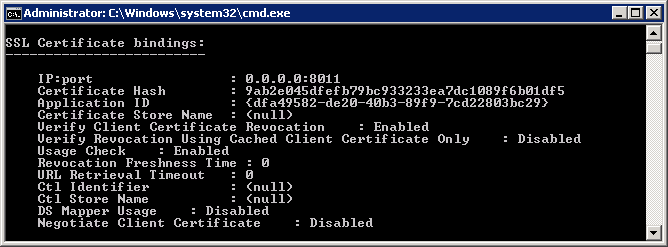
Example of a self-signed certificate bound to port 8011.