Tip: An alert on version update will be available at the bottom right end section of the application.
By default, the program checks for updates automatically. When the new version is out, you will see an update report on the "Changes in Versions" window. It shows which changes have been made and displays all differences between your version and the current version. To continue with update, click "Update."
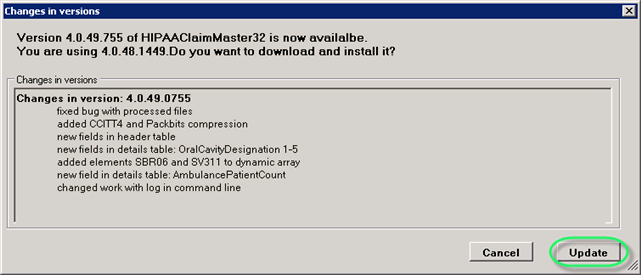
The "Changes in Versions" screen with highlighted "Update" button
Then you will need to re-certify the application.
Specify a location on you local PC where to download the new version.
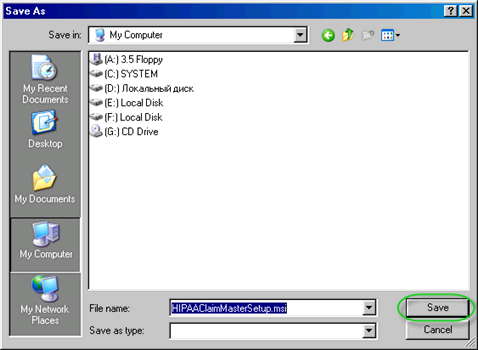
The "Save as" window with the "Save" button highlighted
Then the program will start downloading.
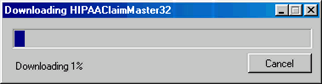
The "Downloading HIPAAClaimMaster32" popup
Then you will need to install the application.
Manual Updates
To switch off automatic updates and stick with the version you have, go select Setup  Options in the main menu.
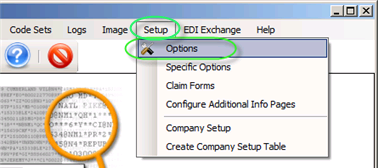
The "Options" menu
Alternatively, you can click on the "Setup" button located on the main toolbar.
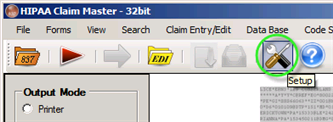
The "Setup" button
The following screen will appear. Check the "Never check for update" option and click "Save."
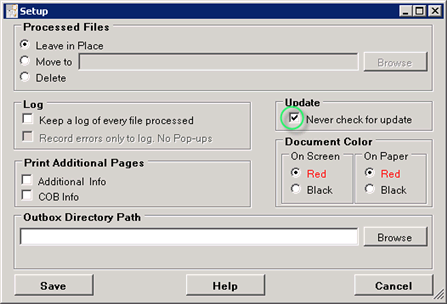
The "Options" window
To update the application manually, go to Help Check for Update in the main menu.

The "Check for Updates" menu item