| 1. | To configure the claim entry options, select Claim Entry/Edit  Claim Entry Settings in the main menu. Claim Entry Settings in the main menu.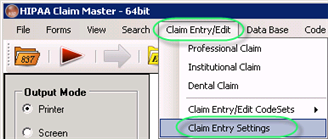 The "Claim Entry Settings" menu Alternatively, you can access the setup window from the Claim entry/edit window. Click the "Show Setup Screen" button. Read more in Using the Claim Entry/Edit Function. 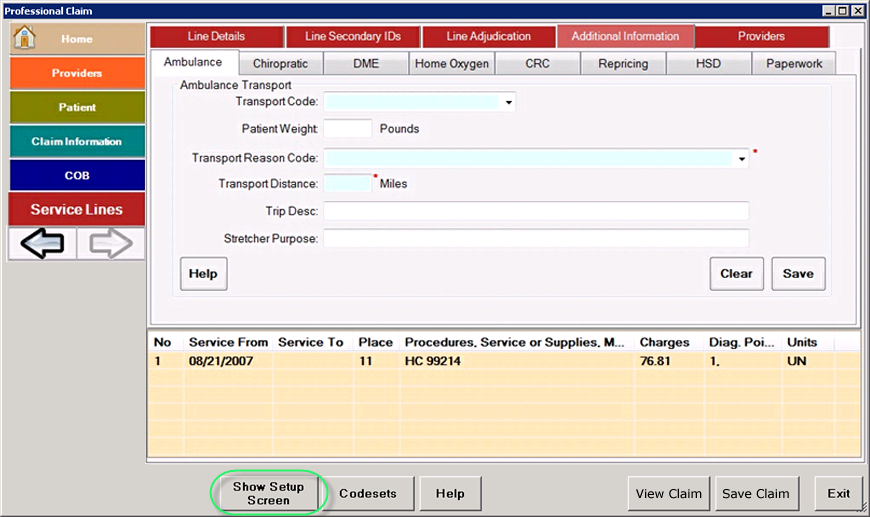 The "Show Setup Screen" button on the "Professional Claim" window |
| 2. | The following screen will appear.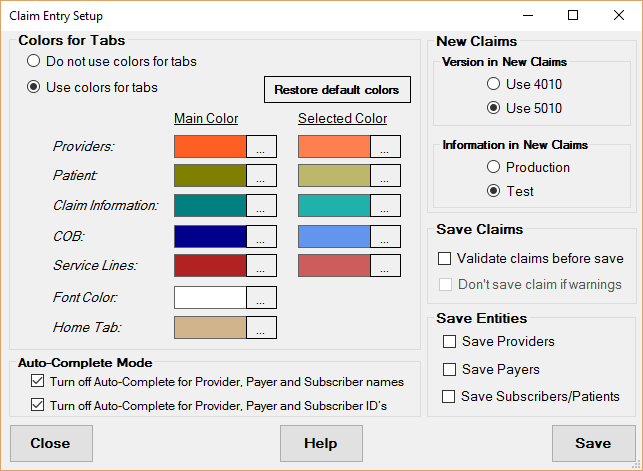 The HIPAA "Claim Entry Setup" window |
| 3. | The claim entry setup screen is divided into the following groups: |
| • | Colors for Tabs |
| • | Auto-Complete Mode |
| • | New Claims |
| • | Save Claims |
| • | Save Entities |
Read the detailed descriptions further.
| 4. | Once you have finished editing the options, click the Save button to save any changes or click the Close button do discard them. |
Colors for Tabs
Unlike other screens in the HIPAA Claim Master, the window for claim entry has a lot of colors (see Using the Claim Entry/Edit Function). We decided to do this to give a clear distinction between the different groups of information. There are so many screens in this application that it is easily confusing to the data entry person. To develop a sense of intuition of where one is in the process and flow of the program we decided to add colors. You also have the choice to not use colors for the tabs:
| • | Do not use colors for tabs |
| • | Use colors for tabs |
You are free to customize the colors. Click the button with the three dots to the right of each color to display the color selection screen where you can choose the color for a particular segment.
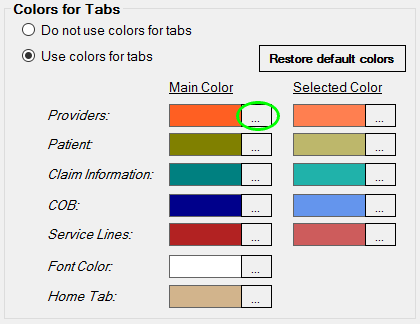
The color palette selection button
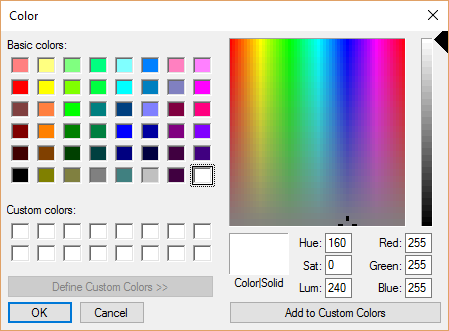
The color selection window
New Claims
HIPAA Claim Entry lets you predefine the version of the claim that you enter. This choice will influence the screens that you are presented with. Claims you create will be written to the database according to the implementation guide for the version that you choose.
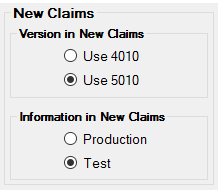
Claim version options
Version in New Claims
Set new claims to the X12 4010 or 5010 standards. A claim loaded into the claim editor will preserve the standard it was saved in originally.
| • | Use 4010 |
| • | Use 5010 |
Information in New Claims
Set new claims to use Production or Test data.
| • | Production |
| • | Test |
Save Claims
Before saving a claim to the database, it can be validated against the X12 standard. The compliance engine will warn users of errors that would make the claim fail compliance, such as missing segments, incorrect datatypes, unrecognized qualifiers or excessive characters in a particular field.
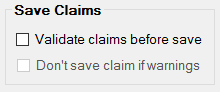
Claim compliance validation options
| • | Validate claims before save - runs the compliance engine to check for potential errors in a claim file |
| • | Don't save claim if warnings - if a claim fails the compliance check, it is not saved to the database |
Save Entities
Saving entities to the database is an option for facilitating data entry. Providers, patients and payers are saved into a database after being entered for later retrieval. Entering a last name or ID will automatically fill the entity's remaining fields in the claim editor. They can be individually selected. To view currently saved entities, see entity editing.
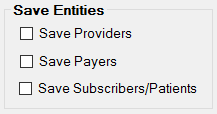
Save entity to DB options
Checking an entity will allow a user to autofill a provider, payer, patient or subscriber in the claim editor by filling in the entity's ID.
Auto-Complete Mode
Entities saved to the database can be loaded into a provider, payer or patient form by typing out the relevant entity's name or ID. The ID and Name textboxes will suggest an entity to enter into the form and accepting will autocomplete the remaining details. To disable this capability for the ID or Name, check the appropriate box. To learn more about autocomplete for providers, payers and subscribers, see Provider, Patient and Payer Autocomplete.

Autocomplete options