To send your new or edited request, you must first save it. The minimum required fields for a complete Claim Status request are marked with a red asterisk. They are the Requester's Last/Organization Name and ID, a Provider's Last/Organization Name, ID Type and ID, A Subscriber's ID Type and ID, and a Claim Number.
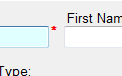
An asterisk marks a field as required.
After saving a Claim Status request, it will be added to the workgrid. This new row will present the Requester, the Subscriber, the Dependent (if any), the Subscriber's ID, and a symbol denoting the status of this particular request.

A new Claim Status request.
If you have the EDI Exchange module licensed and configured in addition an EDI compliance check will be performed. This check makes sure that your information is complete and in the right format when you compile the request information into the 270 request transaction. The results will be displayed on the rightmost column. A checkmark denotes the compliance check has passed, while a red crossed circle flags a request did not pass the compliance check.

Example of Claim Status requests after a compliance check. The bottommost request passed, the request above it failed the compliance check.