The third main tab is call "Specialty Review" and contains quite a few sub screens. First when we click on this tab we see the following screen:
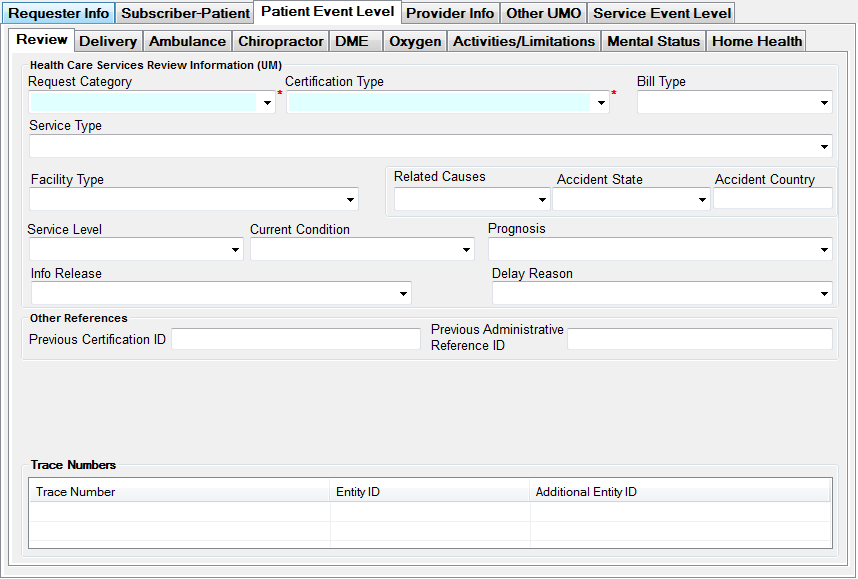
The Specialty Review-Review screen
There are 9 individual sub tabs on this screen. The first one, Review, is visible above. The information in the top frame goes into the UM segment with the first two elements, Request Category and Certification Type being required fields.
The choices are all narrowed down to the values in the drop down lists of the fields.
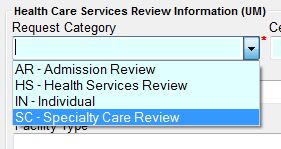
The choices for Request Category
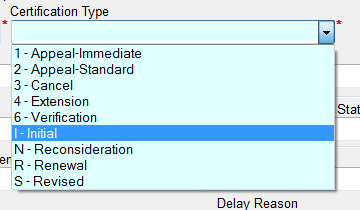
The choices for Certification Type
A second frame contains previous certification ID's which will be represented by REF segments and when the institutional bill type is chooses a third frame appears with institutional claim codes. Usually Admission Type and Admission Source are needed for a valid request with the institutional bill type. This information will create the CLI segment

Lastly the Trace elements are displayed. They belong into the TRN segments and are used to re-associate the response with the request.
