|
<< Click to Display Table of Contents >> Debug Mode |
  
|
|
<< Click to Display Table of Contents >> Debug Mode |
|
HIPAAsuite RealTime Server is, as mentioned, a formless application. There is normally no user interface with feedback to the user. In fact for efficiency reasons this is not even desired. But this fact makes is also hard to see what is going on in this black box. Sure, one can see that the process is running in the task manager:
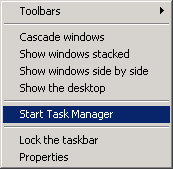
Right-clicking the taskbar is a quick way to access the Windows Task Manager.
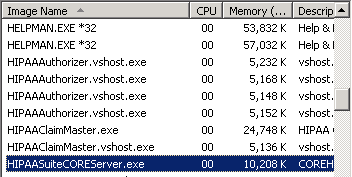
HIPAAsuite RealTime Server listed in the Windows Task Manager.
The log also provides a history of activity. Otherwise, it is a riddle what is going on inside. Especially when setting up new trading partners or trouble shooting issues this is not enough. For this reason, the HIPAAsuite RealTime Server provides the option to show a debug console. The debug console will output to a dedicated console window incoming and outgoing messages. This includes their contents and user authentication. When the debug option is selected in the config menu,

Debug Mode checkbox.
a console window is opened the next time HIPAAsuite RealTime Server is run. And one line of console text informs us that the RealTime Server is now running in debug mode.

This is the line of text you should see in the console window.
When we designed the HIPAAsuite RealTime Server we had the goal to provide as much relevant information as possible about each step the server is taking while not overwhelming the observer. In the next paragraphs we will show you what the debug screen looks like and what information it contains.
If a new request comes in the process starts with a time stamp. The message parser does its work and the message parameters and payload are displayed. Use of depersonalized test data is recommended when using the debug console to test.
Debug mode will put privileged medical information on the screen. Make sure that all the protocols of HIPAA Privacy and Security are followed and that staff is informed about the obligation under this law.
Upon receiving a request, the console will output the time it was received in and the username of the Trading Partner that initiated the transaction. Once the Trading Partner is authenticated, the request body is presented (excluding credentials). The HIPAA RealTime Server will then call the appropriate HIPAAsuite application to process the incoming
When the process is finished the response file will be read and turned into the payload. The message envelope is built and again displayed in the command window.
The following is an example of what a real time SOAP-formatted general 270 Eligibility Request message and immediate 271 Eligibility Response message for testbed data member Castillo, Frank looks like in debug mode with the "Show Payload" option enabled:
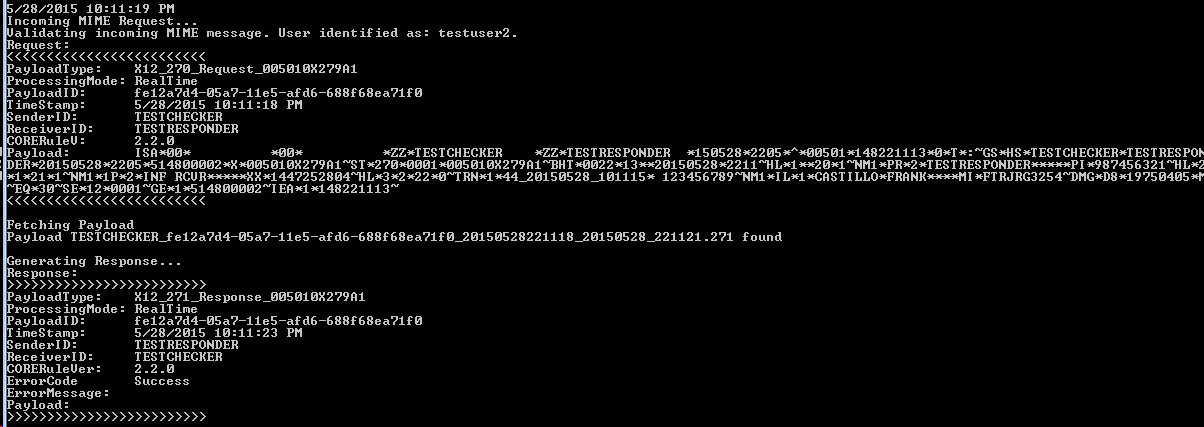
HIPAAsuite RealTime Server receives a test 270 SOAP real-time request
We do not recommend running HIPAAsuite RealTime Server in Debug mode in production since this console interaction affects the performance of the server
Any error messages that the server throws are listed as well.
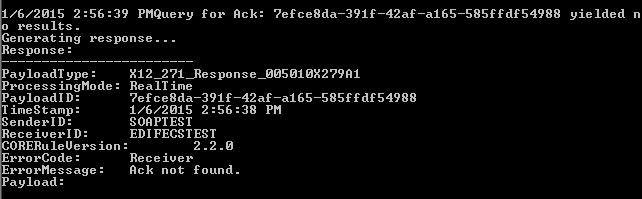
By using HIPAAsuite RealTime Server's debug mode, you can effectively observe the flow of data to the service. If there are problems you can pin point to what transaction, process or set-up needs troubleshooting and verify that everything is working as intended.
The following is a complete batch mode 270 Eligibility transaction as seen in debug mode with the "Show Payloads" option enabled for testbed data user Castillo, Frank starting with the initial request and its receipt confirmation.
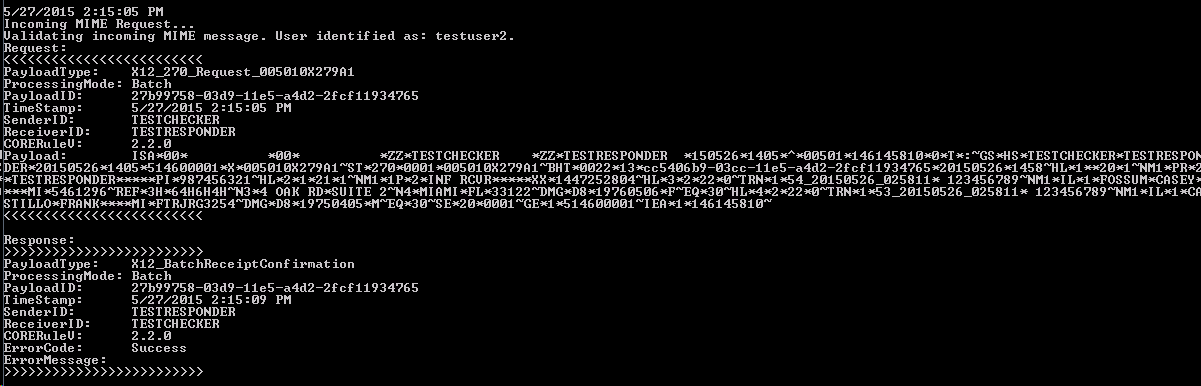
A batch submission request and subsequent receipt confirmation response.
The client is always initiating the transaction and always needs to validate itself using a user name token or X.509 certificate. (to be implemented later)
In batch mode the request is not fulfilled immediately as with real time, but is answered with a batch receipt confirmation. The following is a request for the 999 associated with the 270 Eligibility request submitted in the previous example and its subsequent 999 response:
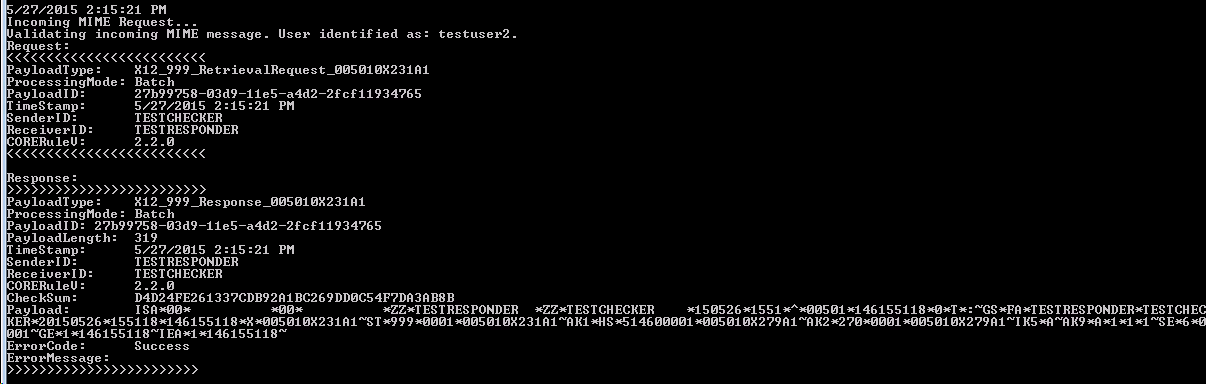
A 999 request in SOAP
A 271 batch request for the previously sent 270 batch request and the subsequent 271 response:
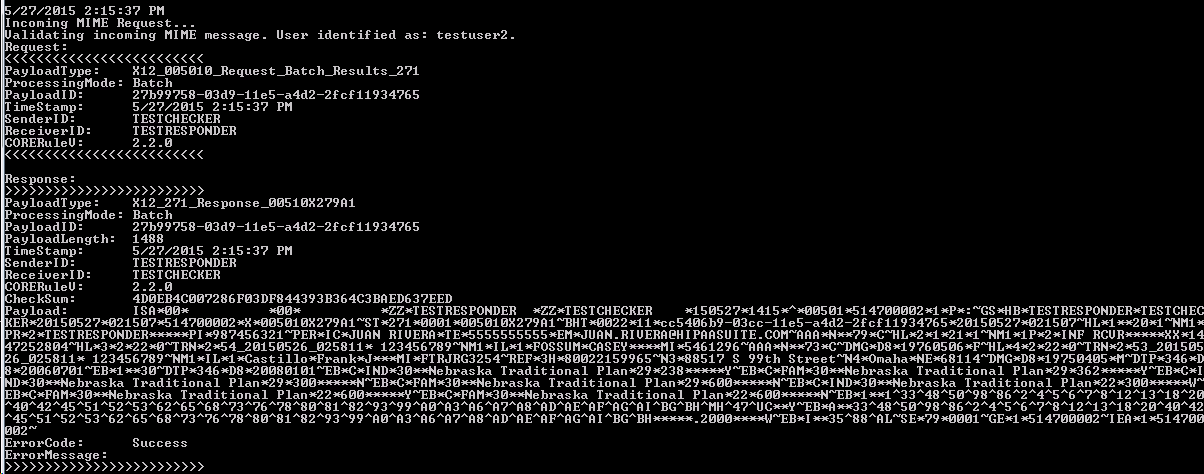
A batch result request in debug mode
Finally, a 999 acknowledgment submission for the receipt of the above 271 batch results and subsequent acknowledgment receipt confirmation:
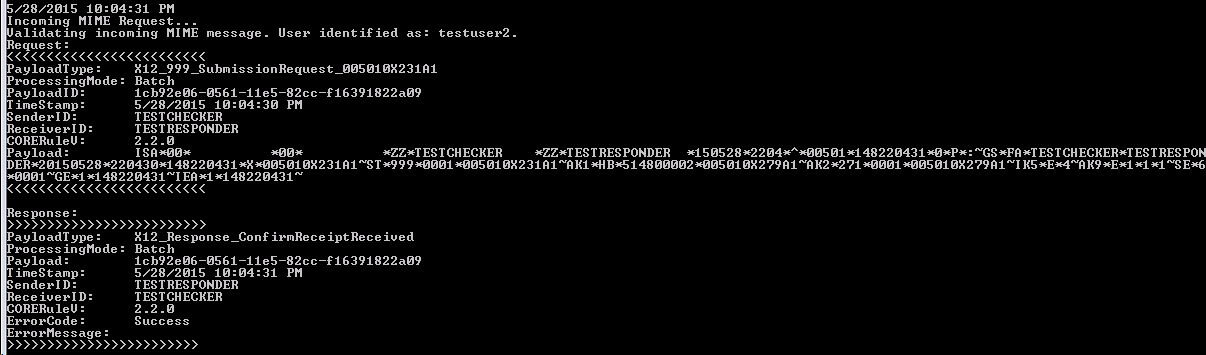
The final step in the batch process, the batch results receipt submission.