The HIPAA Claim Attachment Master can keep a log entry for each file that gets processed. This feature is especially helpful when the HIPAA Claim Attachment Master is run through automated processes. The log is essential in tracking errors and documentation.
Enabling Logging
To enable logs, check the "Always Write to Log" checkbox under Setup  Options Log.
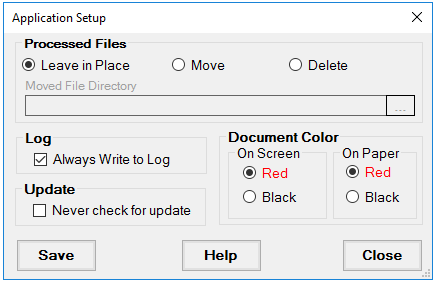
The "Always Write to Log" check-box
Accessing Logs
Follow the instructions below to access the log files for your HIPAA Claim Attachment Master.
Click Log Daily Log in the main menu.
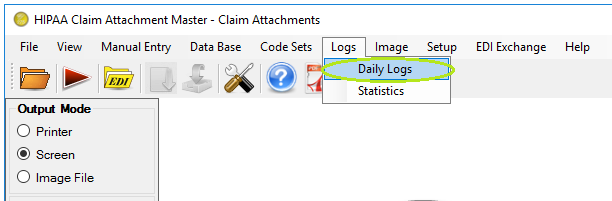
The "Log" menu
If there is a log file for the current day, it will be displayed. If not, the page will be blank. You can navigate to each date with the calendar control on top of the page.
Log files are simple text files, one for each day that are stored in date hashed folders. Alternatively, access the Logs folder in the following directory:
Windows XP: C:\Documents and Settings\All Users\Application Data\HIPAAsuite\HIPAA Claim Attachment Master\Logs
Windows 7, Vista: C:\ProgramData\HIPAAsuite\HIPAA Claim Attachment Master\Logs

The directory structure for the daily logs
Tip: The folder is hidden by default. But if you type in the address in the top bar of the Windows explorer, you will find that it exists. Or you can change the explorer settings to show hidden files and directories.
Tip: The ProgramData folder contains all your application data, like program settings, user data, etc, for all of the installed programs on the computer. The ProgramData folder holds the same files that were contained in the \Documents and Settings\All Users and \Documents and Settings\All Users\Application Data folders in XP.
For each day that the HIPAA Claim Attachment Master is used (If logs are enabled), there will be a log file which carries the name in the filename.
Within the directory, find a folder for the year you are looking log for. Then find a sub-folder for the necessary month with files for each day. Double-click a file which has the name equal to the necessary date. The log will look like this:

The daily file log
This entry is for a problem free file. Out of this entry you will get:
| • | Process start time |
| • | Filename |
| • | Number of exports/image files/ prints |
| • | Processing time |
| • | Average time per claim |
An entry with errors might look like the following:

The second entry shows a database export problem. The message contains details that allow tracking of the problem. In this case a carriage return was in the file between the 2 and the 4.