EDI relies on transaction code sets. These codes represent longer explanations and descriptions.
At the onset of EDI one of the main design ideas was to make the EDI files as short as possible and to allow different languages to use the same descriptions by reducing long verbose explanations to 2-3 byte long codes. Computer storage was incredibly expensive and making any file larger than it absolutely had to was considered wasteful.
The code sets are stored in the file codesets.xml in the Configuration subdirectory:
Windows XP: C:\Documents and Settings\All Users\Application Data\HIPAAsuite\HIPAA Claim Attachment Master\Configuration\
Windows 7, Vista: C:\ProgramData\HIPAAsuite\HIPAA Claim Attachment Master\Configuration\
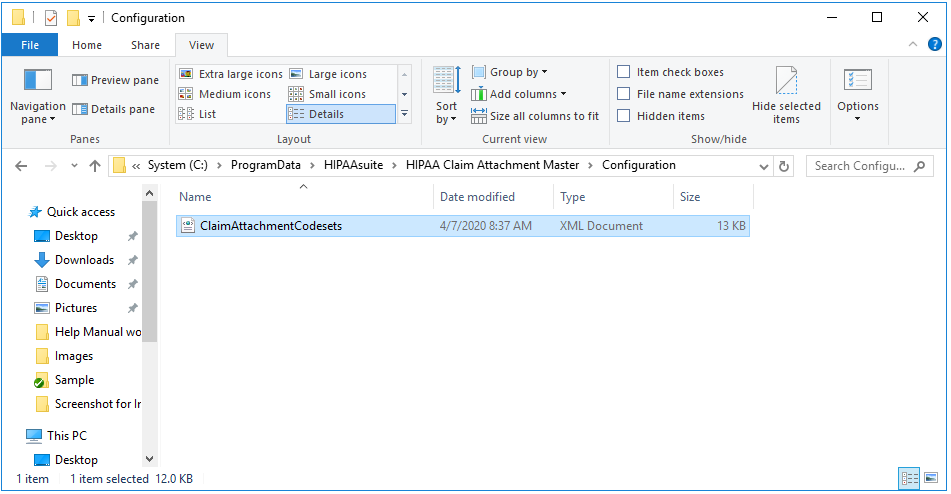
The Configuration folder in Windows 7
Tip: The folder is hidden.
To view/edit transaction code sets in HIPAA Claim Attachment Master, follow the instructions below.
| 1. | Go to the "Code Sets" item in the main menu.  The "Code Sets" menu |
| 2. | From the sub-menu, select a code set name. The following menu items are available via the "Code Sets" menu: A to E |
| • | Claim Status Categories Codes |
| • | Claim Status Codes |
| • | Entity Codes |
| • | Entity ID |
F to P
| • | Gender Codes |
| • | ID Codes |
| • | Payment Method |
| • | Provider Taxonomy |
| • | Provider Type |
Q to Z
| • | REF Codes |
| • | Relationship Codes |
| • | Transaction Type |
The following screen-shot illustrates how to select the "Payment Method" code set for display.

The "Payment Method" sub-menu
| 3. | The Code Set configuration window will be displayed. You can add, delete or edit codes. Read further how. Below you can see this window for the Payment Method The window provides the following information: |
| • | Number of records in codeset — The total number of codes. For example, for Payment Method it is equal to 5. |
| • | Codes and their corresponding descriptions. The codes are indicated in the source EDI files. The descriptions are displayed instead of codes in the result easy-to-read files. For example, for Payment Method, there are the following codes and corresponding descriptions: |
| • | ACH — Automated Clearing House |
| • | BOP — Financial Institution Options |
| • | CHK — Check |
| • | etc. |

The "Payment Method" code set configuration window
| 4. | Click on the "Save" button to save the changes. |
Adding a New Row
To add, click on the last row. Now you can see the indicator in the first grey field.

The indicator
Click the field again to enter to the Edit mode. Now you can enter the text.
Note: Only after you leave this row, the changes will take place.
Deleting a Row
To delete, click the left margin. This action will highlight the whole row.

Highlighting a row by clicking the left margin
Now press the <DELETE> key on your keyboard.
Editing the Row
To edit, click two times the cell you want to change. Make your changes. Clicking or moving outside this cell overwrites the cell contents with the new value. To make these changes permanent, click the 'Save' button.
Notice: Don't forget to save the changes by pressing the 'Save' button.