275 file information can be created from this screen. To open the Create 275 screen, click Manual Entry and then 'Create 275':
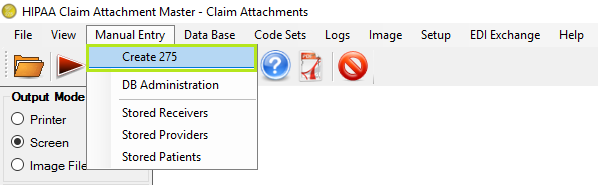
"Manual Entry - Create 275 Menu"
Click on menu open below screen in new window.
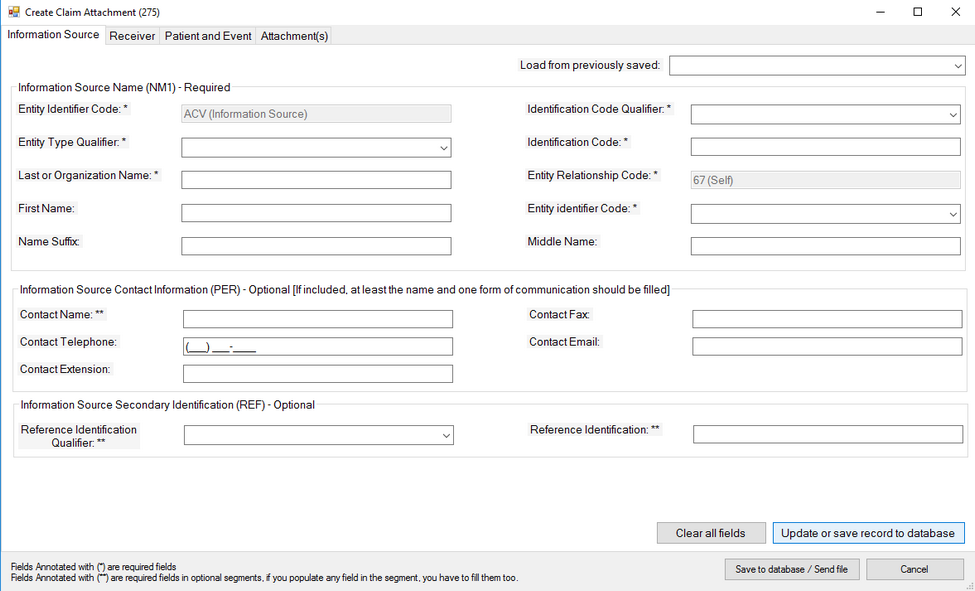
"Create 275 screen"
Screen do contains 4 different data groups:
| 1. | Information Source |
| 2. | Receiver |
| 3. | Patient and Event |
| 4. | Attachment(s) |
User can add/update information of any or all data group information. Each data group is separate section and click on update button only add/update information within that section only.
1. Information Source Tab:
By default screen load in add mode. Screen also do contains drop down which do display saved records.

"275 screen - previously saved record list for selection".
Selection of any record do load data of selected saved record into all tabs.
Click on 'Update or save record to Database' first validate all require fields for information tab.
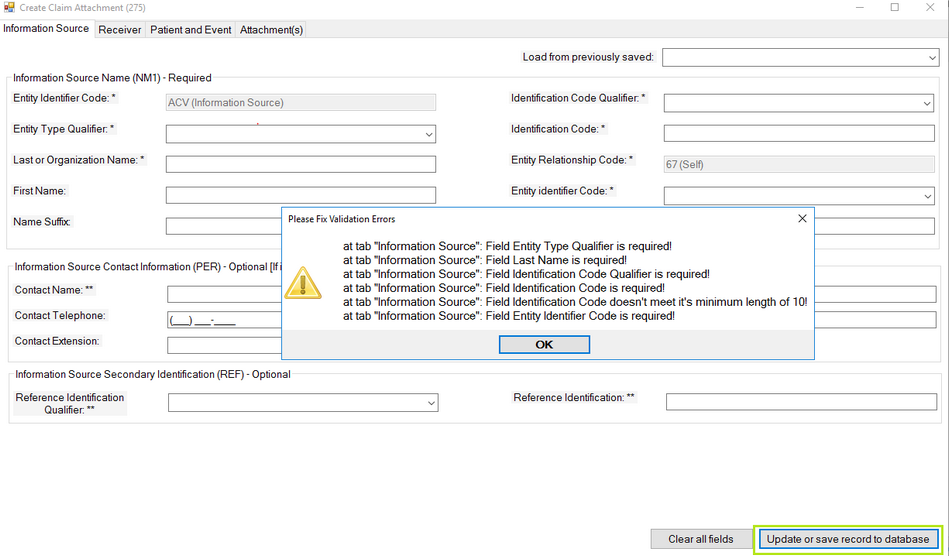
"Create 275 Screen Information Source Tab - Validations"
Application also validate the other segments within screen if information provided by user and its associated mandatory information is missing.
Fill all the required information and click on 'Update or save record to database' button store the information update data group information within database.
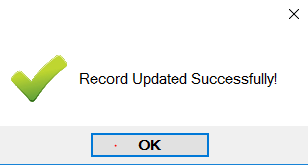
"Create 275 Screen- Success Notification"
Click on OK, do refresh the screen and opens the record into Edit Mode if its add operation.
Clear All Field: Click on this button clear the fields and open the form in add mode.
2. Receiver:
This tab do contains fields associated with Receiver information.
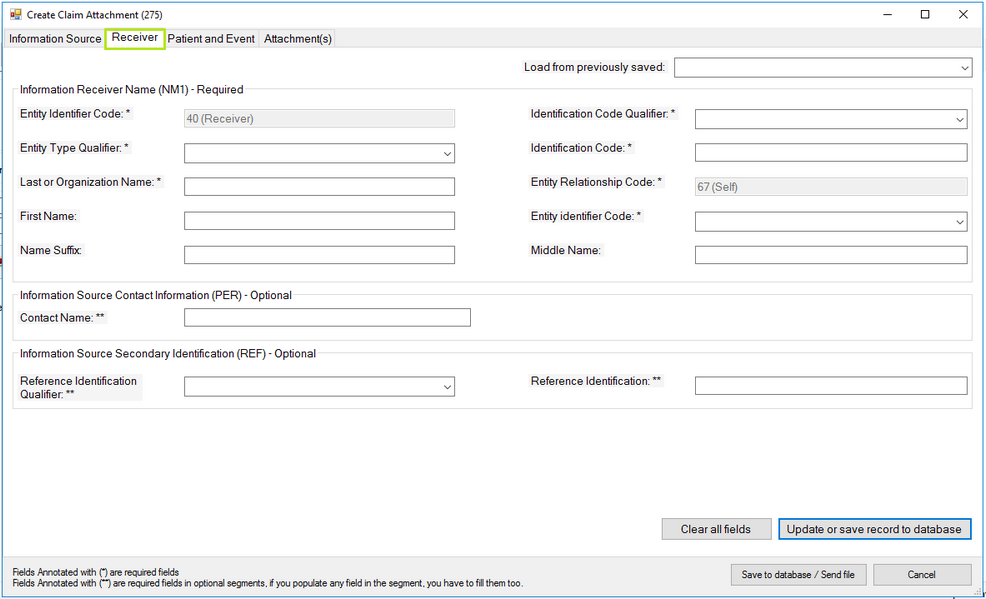
"Create 275 - Receiver Tab"
Update or save record to database button click first validate the Receiver tab data for mandatory fields.
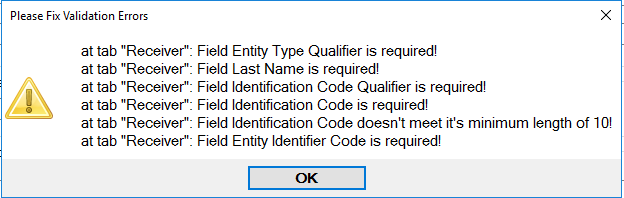
"Create 275 - Receiver tab mandatory fields"
Fill all required fields and do click on 'Update or save record to database' save this data group information into database.
3. Patient and Event:
Click on Patient and event tab do display its associated data group information within screen.
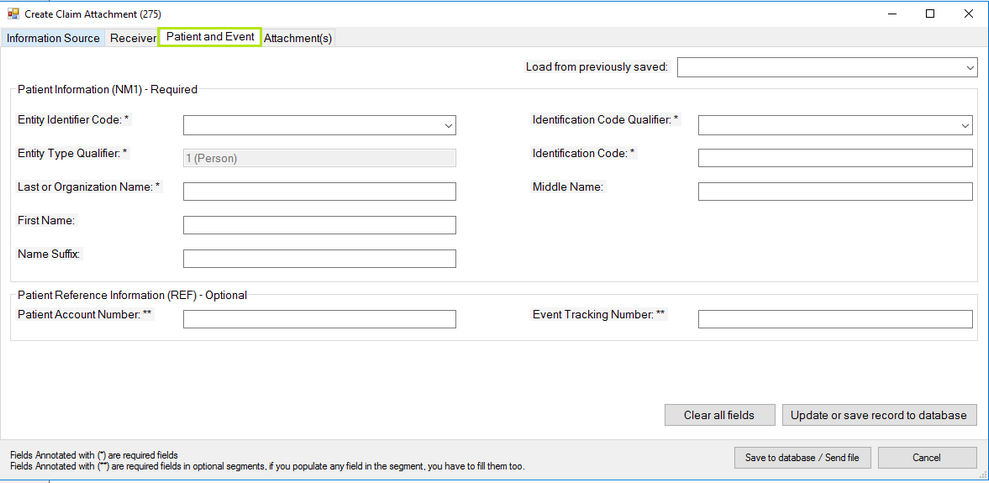
"Create 275 - Patient and event tab"
Click on 'Update or save record to database' button do check mandatory fields and if its not filled then application provide mandatory field validation message.
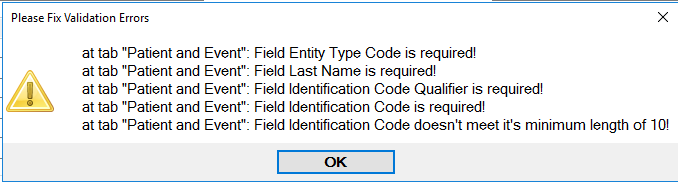
"Create 275 - Patient and Event tab mandatory fields"
Fill all require fields and its associated segment details do save the patient and event data into database.
4. Attachment(s):
Click on Attachment tab do open below data group.
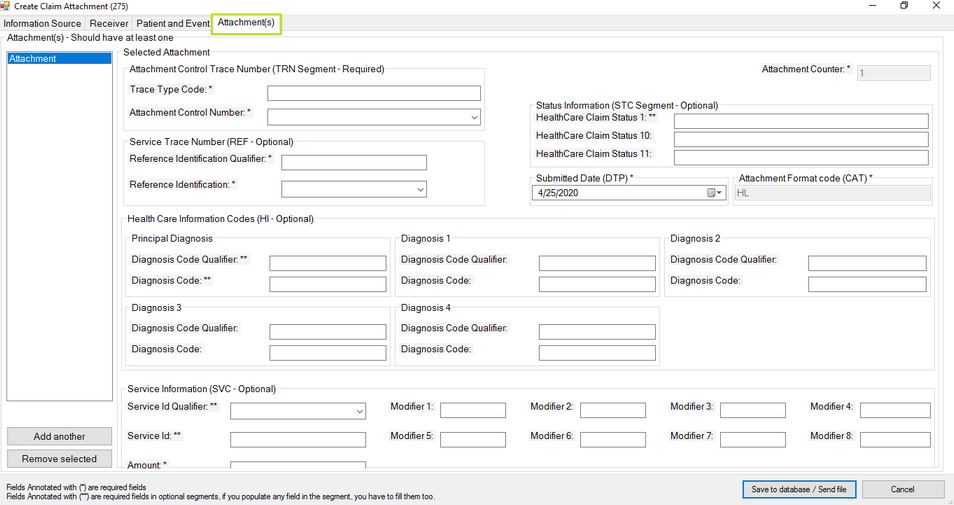
"Create 275 - Attachment(s) tab"
Add Another button click do add attachment and Click on 'Remove selected' button remove the selected attachments from left table.
Save to database / Send file button click do check the mandatory fields of all tabs and do provide validation message within it.
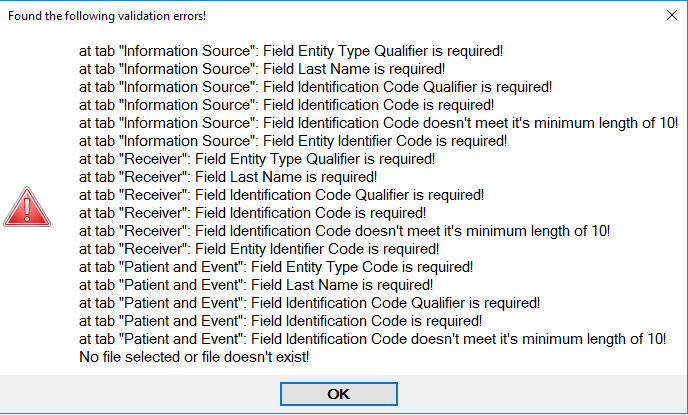
"Create 275 File - All validations error"
Completing all field details and click on button save all information within database.