To create the 275 EDI files follow the instructions below.
| 1. | Select Data Base  Create 275 EDI Files in the main menu. Create 275 EDI Files in the main menu.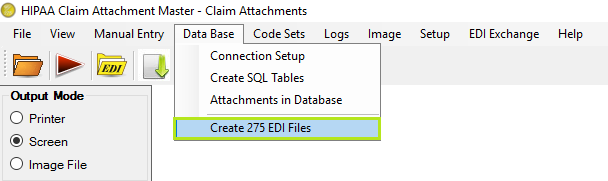 The menu item to create 275 EDI files under the "Data Base" menu Alternatively, you can click the "Create 275 EDI File" button in the query builder ("Attachments in Database" window). |
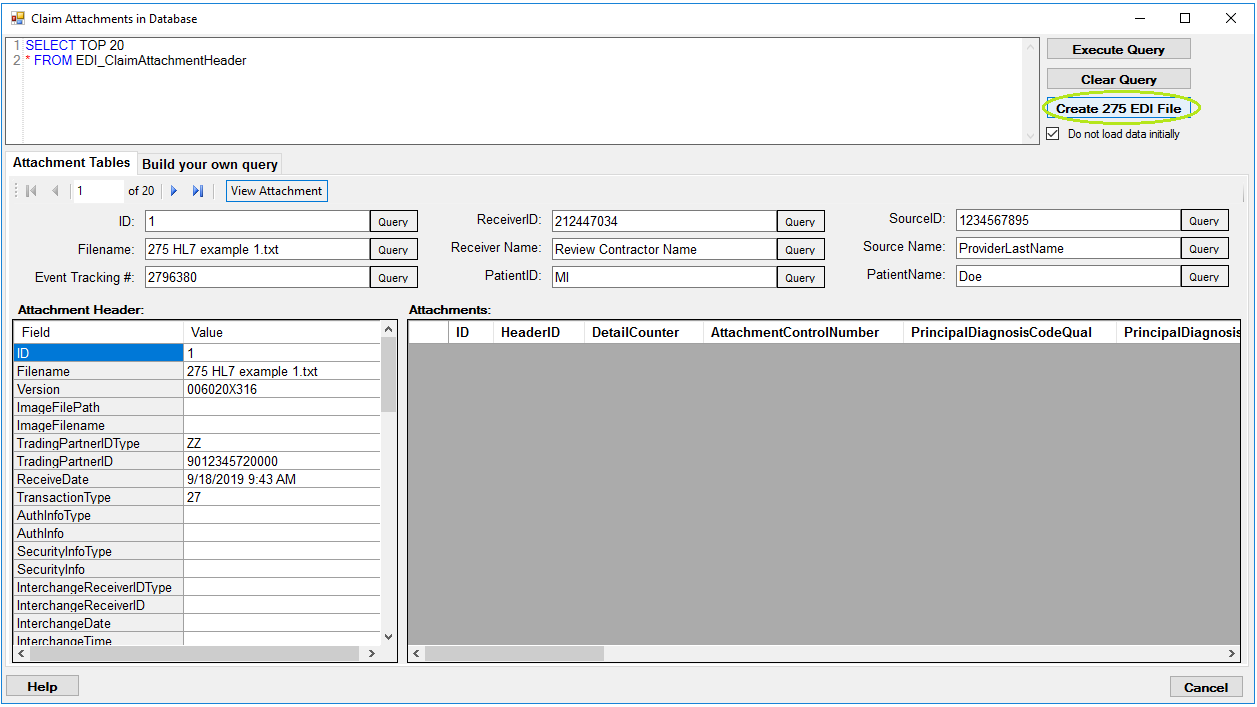
The "Create 275 EDI File" button located on the "Acks in Database" screen
| 2. | Clicking the button will bring up the "Create 275 Transaction Sets" window with the query that you designed. The fields are described in Understanding the "Create 275 Transaction Sets" Window. |
| 3. | After you have filled all necessary values, click "Go!" |
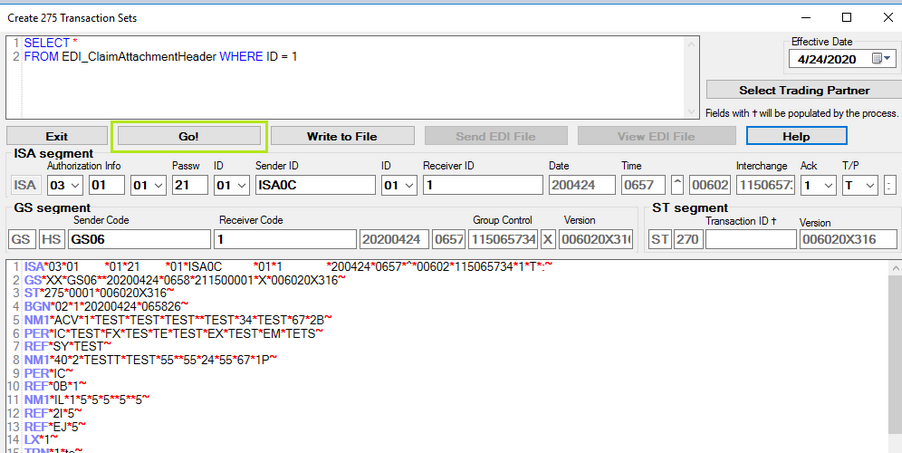
The "Create 275 Transaction Sets" window with the highlighted "Go!" button
| 4. | The EDI text is now displayed in the bottom part of the window.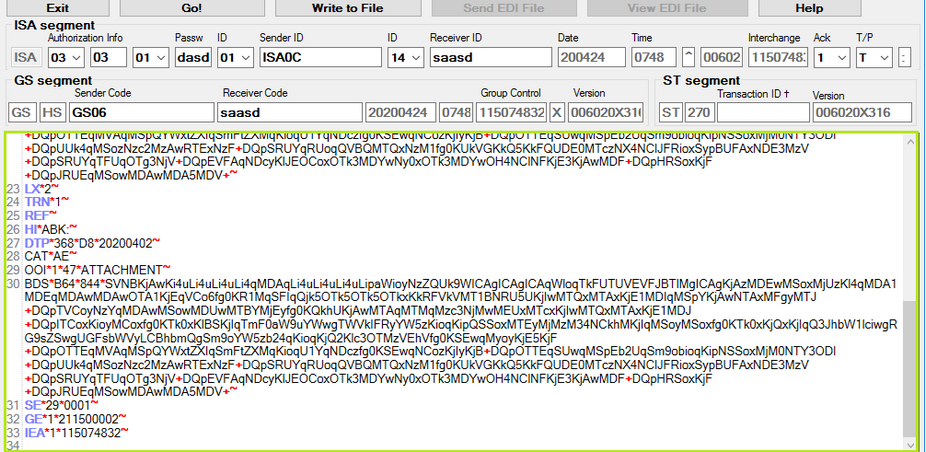 The EDI file content displayed |
| 5. | Now you can write down the EDI text that is still in memory and visible in the text box to a file. Click on the "Write to File" button and you will have the choice to write in the default location which is the trading partner's outbox, or specify any other location: |
| • | Use default path and names |
| • | Select path and names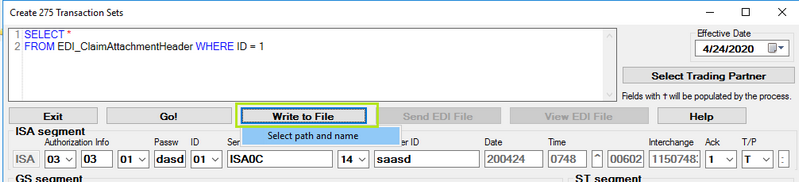 The "Write to File" button |
Click on Select Path and name do open File browse window to save the file with EDI Data.
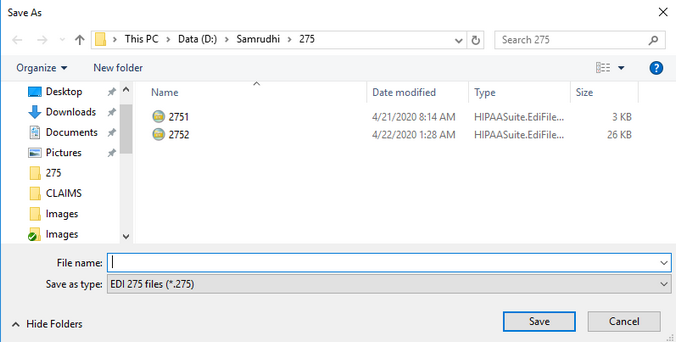
"Write to File - Save file dialogue"
Provide name and save file.
| 6. | After successful writing, you get a message where the file was written to.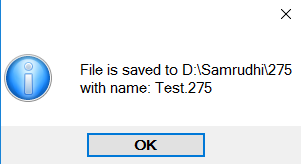 The confirmation message that the file was successfully written |
Viewing the Saved Files
The button "View EDI File" is now enabled and you can bring up the EDI Editor to view it.
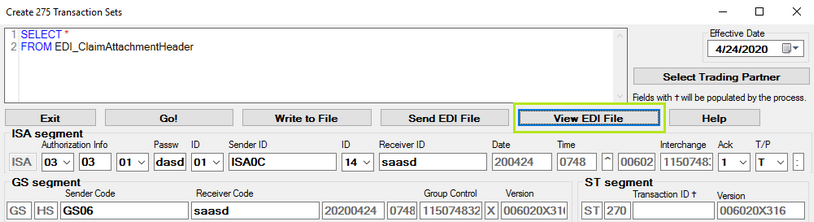 The "View EDI File" button highlighted
The following preview window will open.
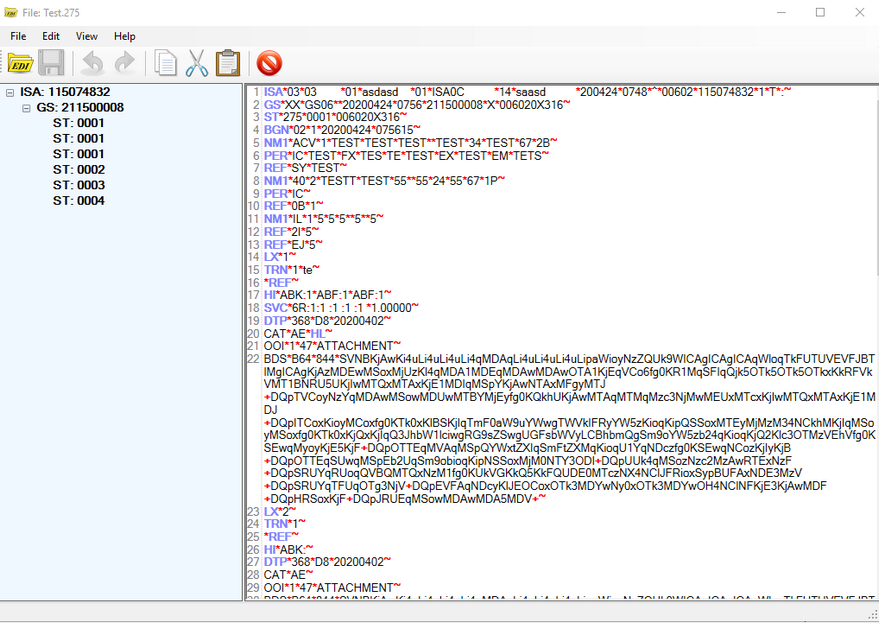
EDI preview window