When we click on "New Request" we see this screen
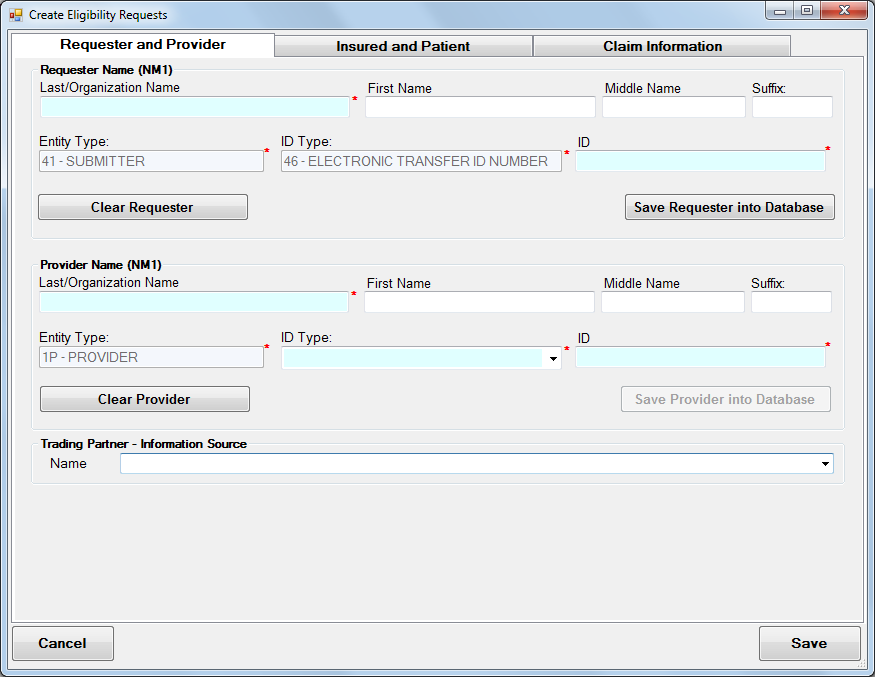
Information receiver and service provider tab.
The first tab of the screen contains the requester, provider, and info source information. You have to enter information about the requester and provider only once and then you can save the information receiver or service provider information for future use by clicking on the "Save Receiver into Database" or "Save Provider into Database" buttons. The Information Source is filled with your previously configured Trading Partners.
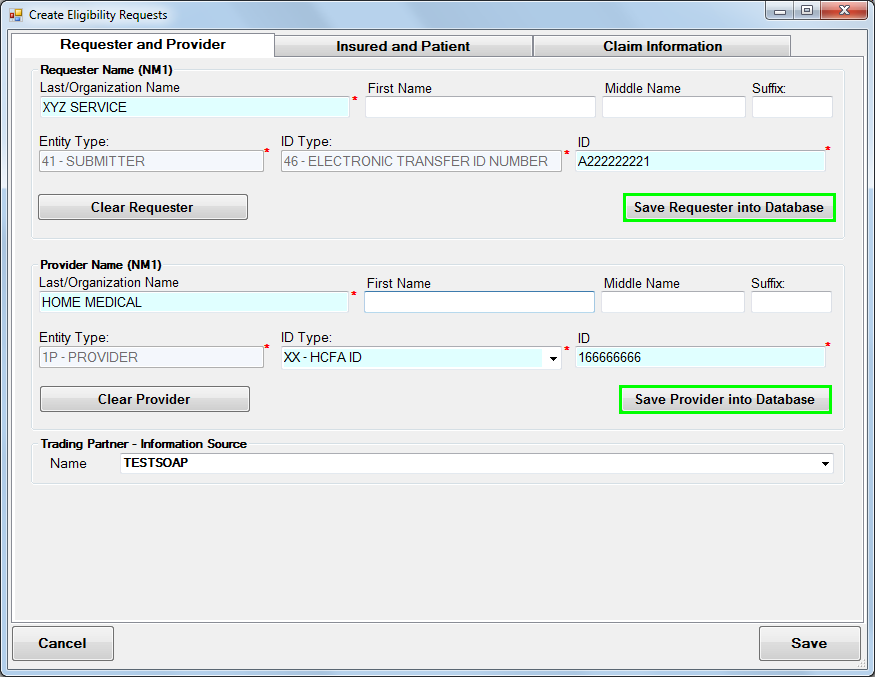
Filled receiver and provider tab. Save buttons are highlighted.
The first block of information contains the information requester's name and identification. The second block contains the service provider's name and identifier. We recommend that you enter the requester and provider information as completely as possible and save it so you don't have to enter any more information when you recall the requester for another request.
After saving, you need only input a few letters of the requester or provider's Last/Organization Name or ID and the form will fill automatically with the saved information.
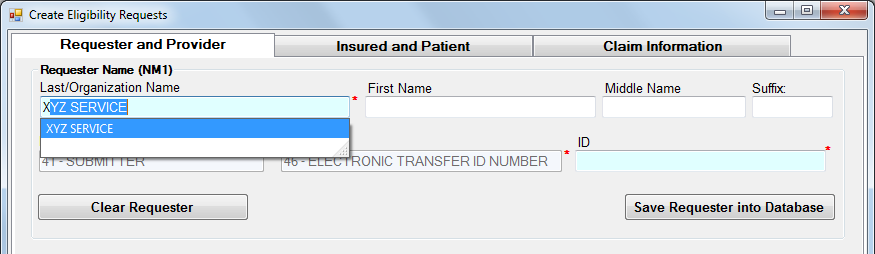
After saving a Requester, you can fill the entire form with a Requester's information with only the Name or ID.
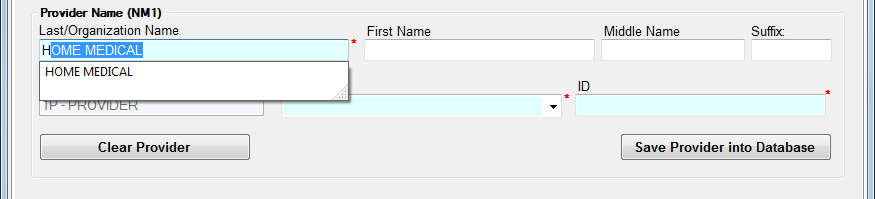
After saving a Provider, you can fill the entire form with a Provider's information with only the Name or ID.
To edit a requester or provider's saved information, enter the name or ID to auto-fill the form, edit the necessary information, and click the associated Save button once more. The new fields will overwrite the older entry.
A claim cannot be saved if lacking a required field. A message similar to the one below will be shown. To save the claim status request, fill in all the required fields and click "Save".
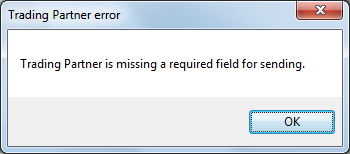
Missing required field error for an empty Trading Partner field.