Procedure code bundling occurs when a payer believes that the actual services performed and reported for a claim payment can be grouped together and represented by a single procedure code. This means the previously reported procedure codes will be paid under only one procedure code and usually results in a lower payment from the payer.
To bundle procedure codes, first select the claim lines you wish to bundle. A group of lines is selected by click-dragging over any number of lines or clicking a single line, holding the Shift key, and clicking a second line. If the claim lines are not adjacent, hold the Ctrl key while selecting individual lines. Then, right click any one of them. This will open a floating context menu. Click the Bundle option.
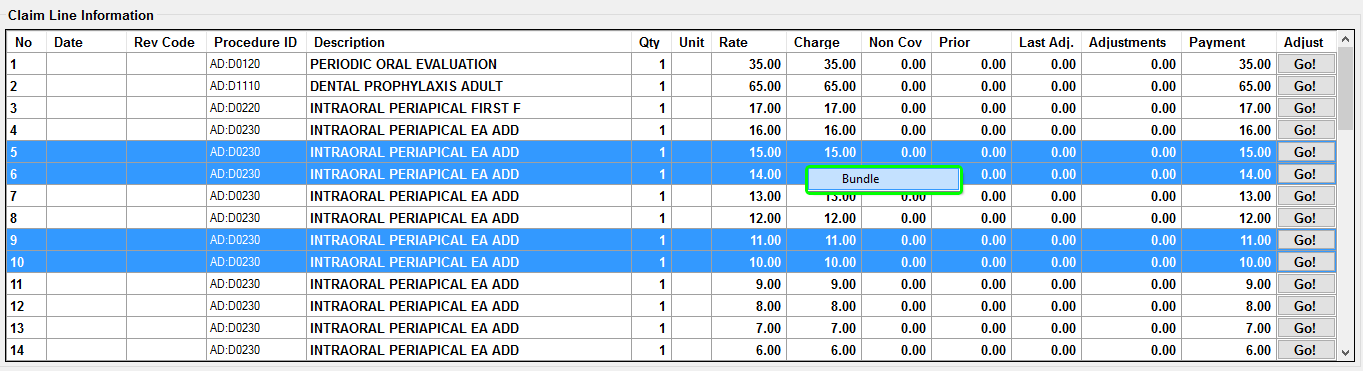
Multiple claim lines are selected. Right-clicking produced the floating context menu which is displaying the Bundle option.
This will open a screen where a new procedure code can be written. The new procedure code will replace the procedure codes being bundled. Enter a new procedure code, code type and maximum allowed amount. The procedure code modifier and optional description fields are optional. Then, Click Save. This will close the bundling window and replace the selected procedure codes with the new procedure code.
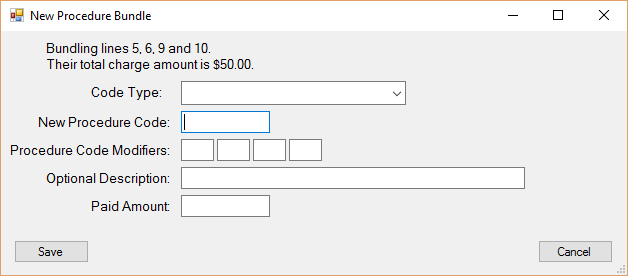
Bundling window.
All but one of the bundled lines will have their open totals adjusted to $0.00 and their sum added to a single line which will serve to represent all of them. If any adjustments need to be made after bundling, use this representative line.
In this example, the maximum allowed amount is $40.00. The total adjustment amount to bring the total for the representative bundled line to $40.00 is a negative adjustment of $25.00 added to the original charge of $15.00. The remaining bundled lines are not removed, but are adjusted to $0.00 and their procedure code is changed to the new assigned procedure code to indicate they have been bundled.
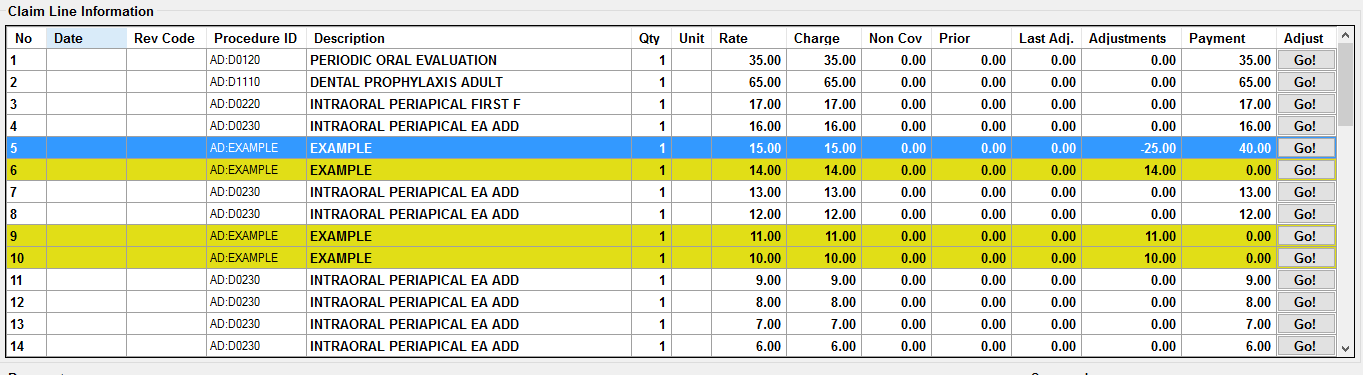
Claim Line table. Four lines have been bundled into an example procedure code.
Editing a Bundle
The maximum allowed amount for a bundle may be edited by clicking the Go! button in the adjustment column of the representative line for the bundle. This is usually the first row of a given bundle. The Procedure Bundling screen will be shown. A new amount may be entered here. Clicking Save will change the maximum allowed amount for the bundle and recalculate the claim accordingly.
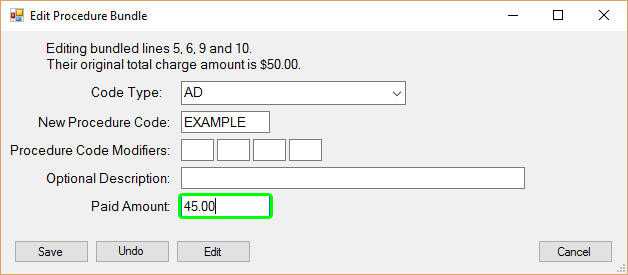
Editing the example procedure bundle's maximum allowed amount.
Undoing a Bundle
This is not the same as Unbundling a procedure code. Undoing a bundle will restore the original procedure code for all claim lines of any given bundle and remove the bundling adjustments, returning them to their original open amounts.
To undo a claim line bundling, click the Go! button in the adjustment column of the representative line for the bundle. This is usually the first row of a given bundle. The Procedure Bundling screen will be shown. In the procedure bundle screen, click the Undo button to undo the bundle.
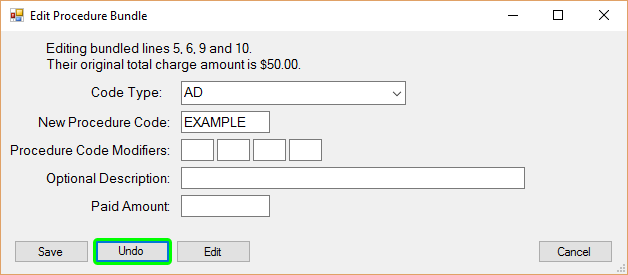
Undo button in procedure bundling screen when editing a bundle.
Alternately, select and right-click any bundled row in the claim line table and click the Undo Bundling option on the floating context menu.
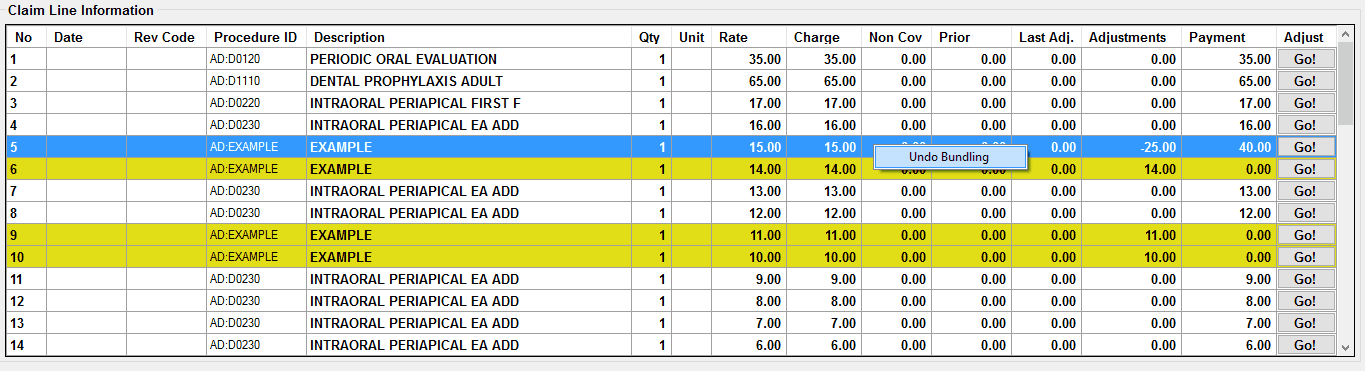
Undo bundling in claim line context menu.
Adjusting a Bundle
It is possible to adjust bundled procedure codes by adjusting the representative bundle line. To do so, click the Go! button in the adjustment column of the representative line for the bundle. This is usually the first row of a given bundle. The Procedure Bundling screen will be shown. In the procedure bundle screen, click the Edit button.
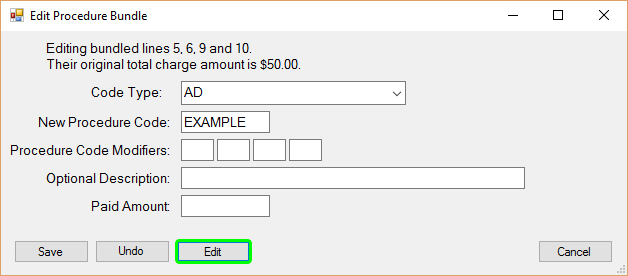
Procedure bundle edit screen. Clicking the edit button leads to the line adjustments screen.
The Line Level Adjustment screen will be shown. Adjudicate the claim line as normal.
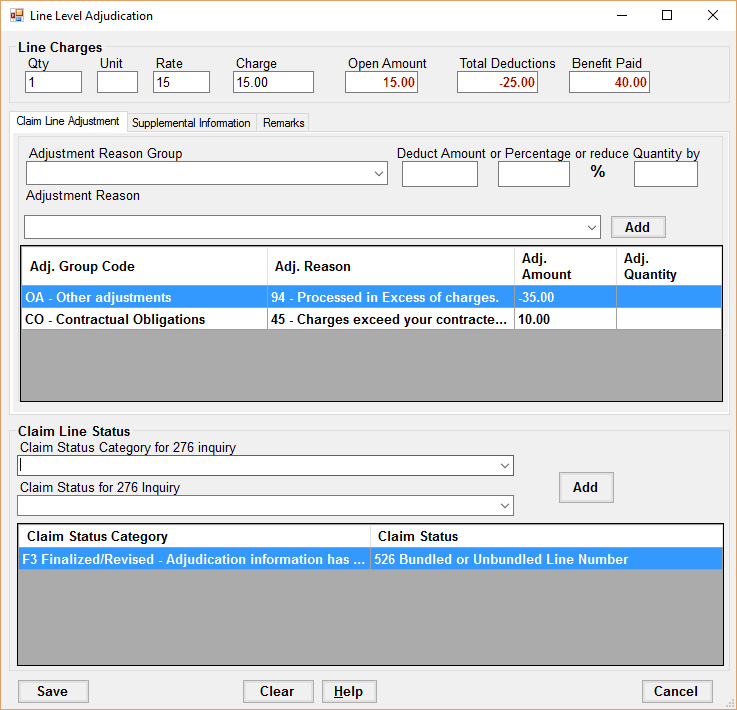
Note the adjustments for a typical claim line representing bundled procedure lines. The negative amount adds the charge amounts from the other bundled lines into a single claim line and the adjustment marked 45 - Charges exceed your contracted amount further adjusts the new aggregate open total to the maximum allowed amount entered. The result is a single claim line representing many procedures.