The HIPAA Claim Payment master can adjudicate claims imported to the HIPAA Claim Master. This chapter assumes you have configured the database connection for HIPAA Claim Payment master, installed HIPAA Claim Master and configured Claim Master's database connection, tables and fields. To set up the Adjudication tables, first open the adjudication menu and select Adjudication Data Fields:
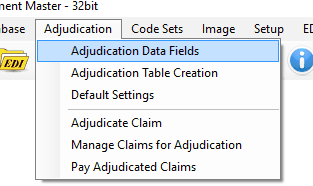
Adjudication menu. Adjudication Data Fields option is highlighted.
The resulting window is the Adjudication Field Setup screen. Click the Test Connection button to test the database connection.
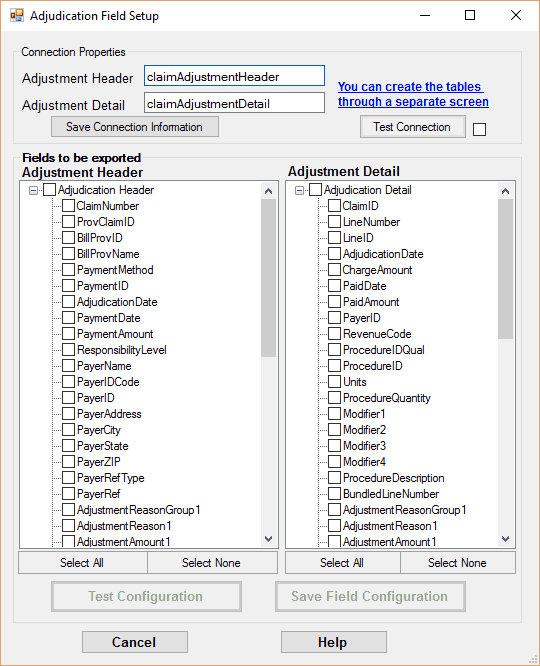
The Claim Fields setup screen.
This will inform you if your database connection details are correct and whether a database connection could be made:
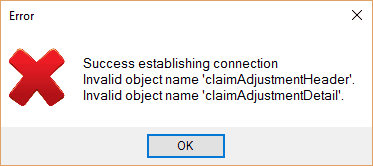
Message indicating a successful connections with no tables.
Having successfully tested the database connection, proceed to creating the claim adjustment tables. Click the blue text that reads You can create the tables[...].
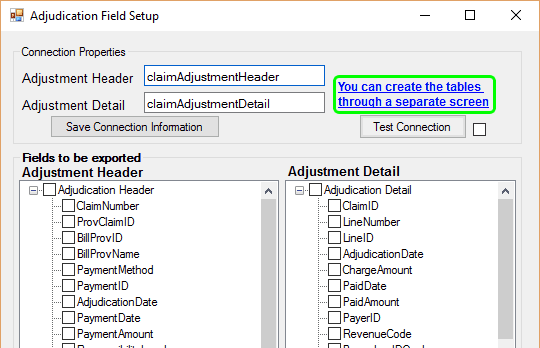
Adjudication Field Setup screen. Click the highlighted text to create the tables.
The scripts to create the adjudication tables are presented in the resulting screen. Select the appropriate database option and click Execute Script to create the table. Do this for both tabs.
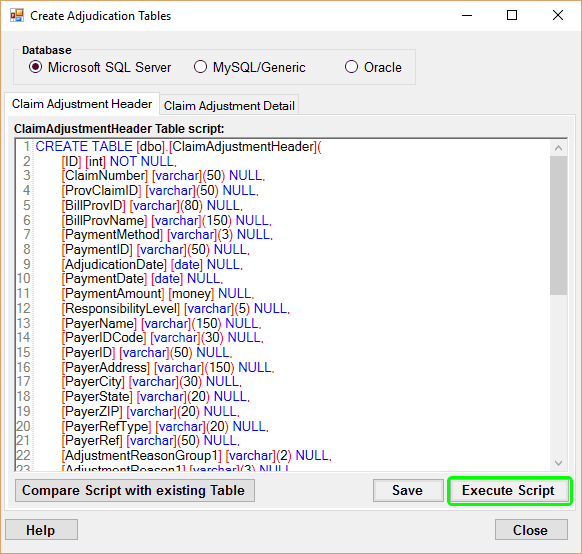
Table Creation screen.
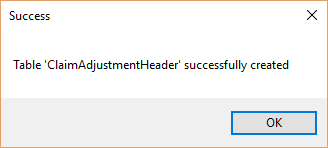
Table creation success message.
After the tables are created, the fields configuration must be checked and saved. Close the table creation screen to return to the field setup screen. Click Test Connection.
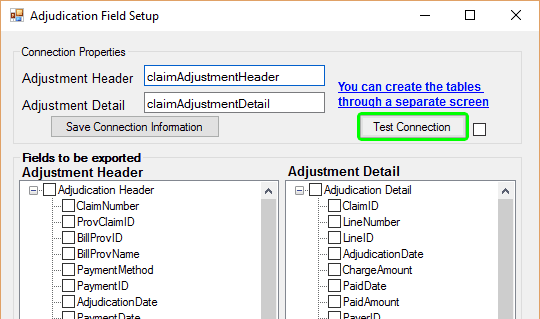
Adjudication Field Setup screen. Test connection button is highlighted.
The connection to the database and the adjustment tables will now be checked.
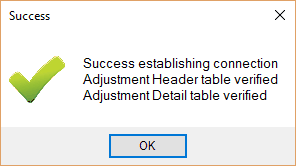
Successful database connectivity test.
Now that the tables have been created, the field configuration needs to be saved. Click the Select All buttons beneath the fields lists.
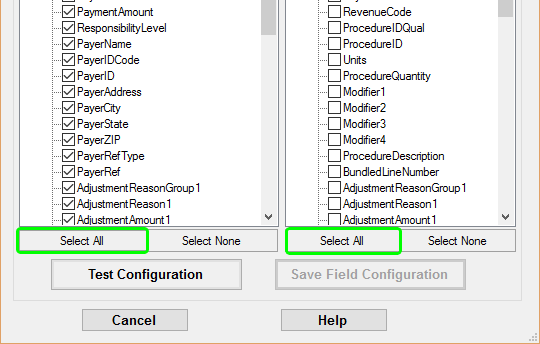
Detail of Adjustment Field Setup screen. Select all fields buttons highlighted.
Click Test Configuration.
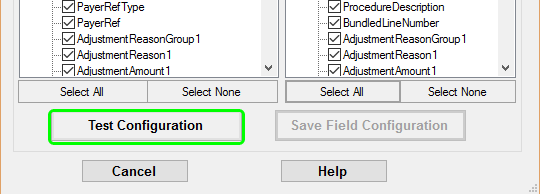
Detail of Adjustment Field Setup screen. Test configuration button is highlighted.
This will check for the existence of all selected fields in the adjustment tables.
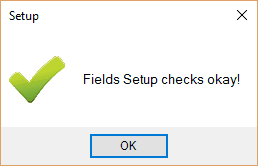
Field setup success.
Finally, save the fields by clicking Save Field Configuration.
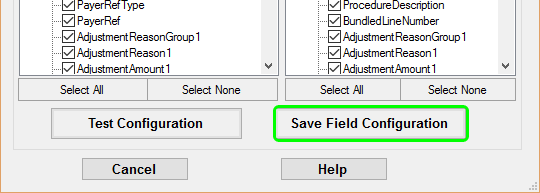
Detail of Adjustment Field Setup screen. Save field configuration button is highlighted.
The HIPAA Claim Payment Master now has a record of which fields are currently used in the database. This is especially helpful after an update that requires changes to the database.
Troubleshooting
Below are errors you might find while configuring your adjustment table fields.
Testing the Database Connection
While testing the connection to database, if a connection cannot be established, refer to the Setting up Database Connection section in the Using the Database chapter to check the database connection as these fields may be in error.
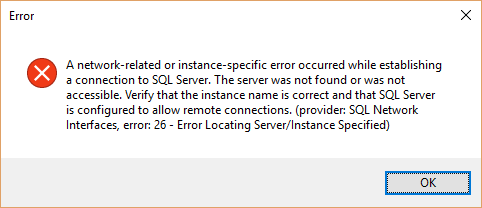
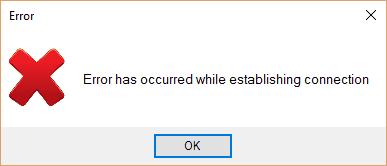
Errors indicating failed attempt at connecting to a database.
Testing the Field Configuration
When testing the table fields configuration, if any fields are missing (or misnamed), the following error will be displayed.
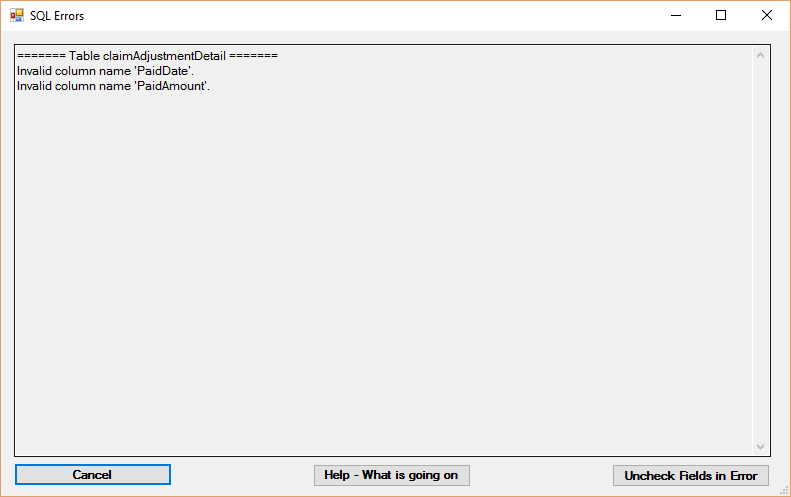
Error during field configuration test. Two fields are missing from the claim adjustment detail table.
This might happen after an update. The table creation screen can add the missing fields. Click the Compare Script[...] button, check the resulting table adjustment script, then click the Execute Script button.
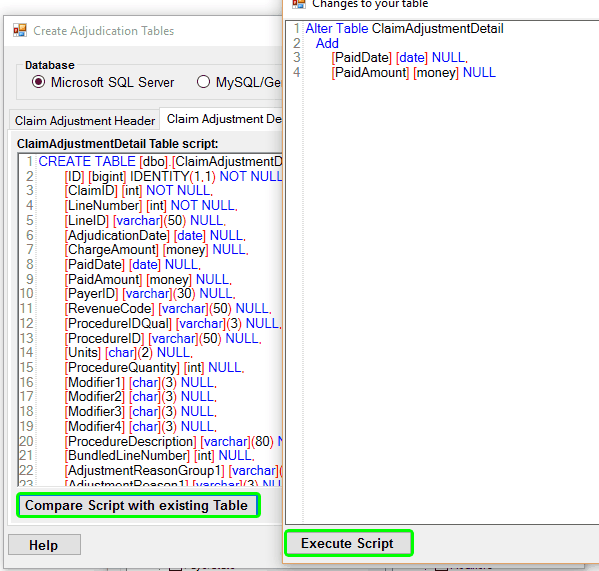
Adding missing fields to a table.