|
<< Click to Display Table of Contents >> Adjusting Image Options |
  
|
|
<< Click to Display Table of Contents >> Adjusting Image Options |
|
Before proceeding with image export, do the image setup as described further.
Select Image  Image File Options in the main menu to access the "Image File Options" window.
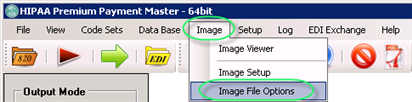
The "Image File Options" menu
The following window will appear:
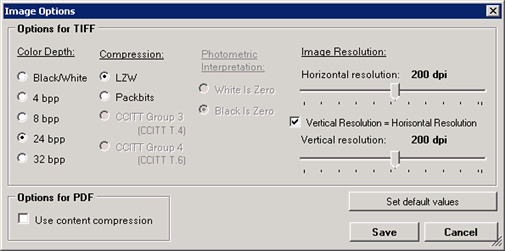
The "Image File Options" window
You can set the parameters for image file creation; they are described below.
Once the options have been set, click "Save."
Here you can adjust the settings of the Image files.
| • | Color Depth — You can change color depth of the image (black / white, 4 bpp / 8bpp / 24bpp / 32bpp). |
Note: TIFF in Window's GDI library does not work with 16 bpp (bits per pixel). Color depths set lower then 16 bpp results in some losses in image quality.
Reference: The black-and-white (bi-level) image means that for each pixel (picture element) in the image we do not need three bytes as in the true color image (over 16.7 million colours), but only one bit that is 1/24 part of the pixel size from the true colour image. The one-bit pixel can express only black or white colors, nothing more.
| • | Compression — You can use compression with TIFF files: LZW and Packbits are used for all Colors, CCITT4 for black-and-white. |
| • | LZW — You can compress any type of TIFF image of any bit depth using LZW, a lossless method. The application can store the compressed image in a TIFF 5.0 file or keep it in memory. An average 2:1 compression ratio is achieved with LZW compression on images. |
| • | Packbits — You can compress and decompress gray scale, palette, and bitonal images using Packbits, a lossless method. Packbits are fast, widely-supported, and provide good compression of sparse images, such as scanned documents. The application can store the compressed image in a TIFF 5.0 file or keep it in memory. |
| • | Photometric Interpretation — For the black-and-white and grayscale images (when "Black/White" or "4 bpp" options are selected as color depth), you can specify the intended interpretation of the image pixel data. Select one of the following options: |
| • | White is Zero — The minimum sample value is displayed as white. |
| • | Black is Zero — Default value. The minimum sample value is displayed as black. |
| • | Image Resolution — You can change horizontal and vertical resolution of images from 96 to 300 dpi (dots per inch). Default resolution is 200 dpi. The same rule applies here: the larger the Resolution, the more computing time and power is consumed and the larger the image file sizes. |
Note: Theoretically we could use even higher resolutions, but it will slow down processing significantly result in approximately the same result in quality.
Options for PDF
| • | Use Content Compression — Checking this option does result in considerably smaller files. You can choose the option to compress the content, thereby reducing the file size by roughly 50%. |