If you choose to create a full response, you will see the Response: Eligibility and Benefit Information screen:
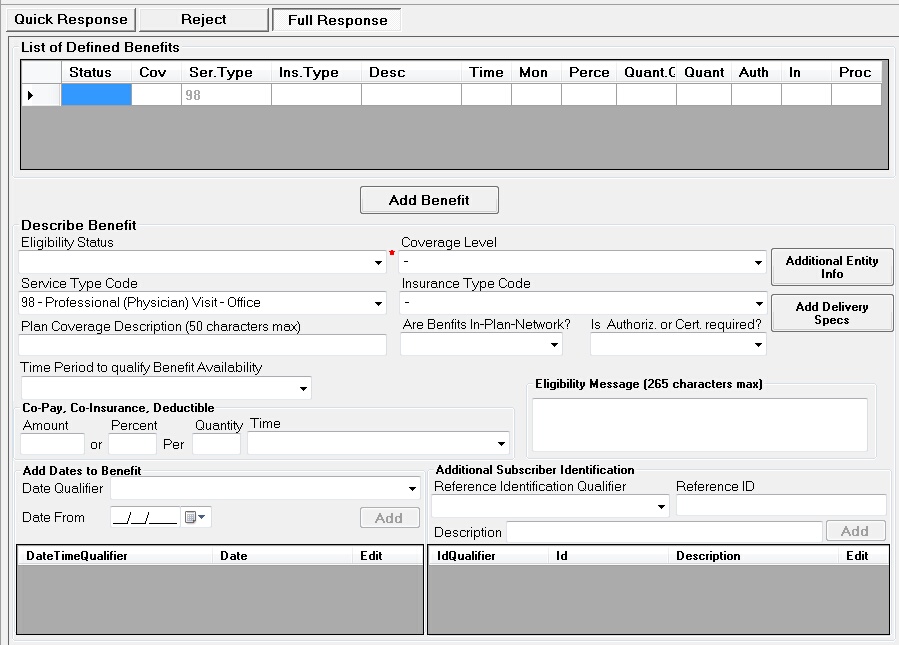
The Eligibility and Benefit screen
When you first call up this screen, you will notice that some values in the drop down boxes are already filled in. This information is carried over from the request. While the implementation guide does not force you to return the specifically requested information, the HIPAA Eligibility Responder defaults to the requested information. While creating benefit information, you can either leave the selected info and answer the request or select any other values. If the request is for multiple services, that means there are several lines in the request screen, you will see for each new benefit that you define the default information pre-selected.
Fill in all the information that you have on the patient. If you have further information in regard to the benefit such as dates and ID's you can add this information in the bottom of the form. This way the additional information is clearly belonging to the current benefit.
You can add insurance information such as policy numbers, employee number etc. to the benefit information. This information will be transmitted in the 'REF' segments.
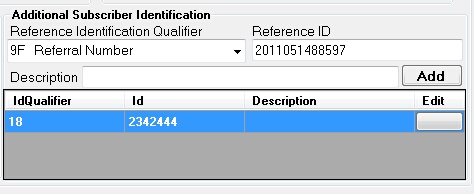
Adding Identifiers to the Benefit
You might want to specify time periods that pertains to the benefit. You can do this on the bottom of the screen
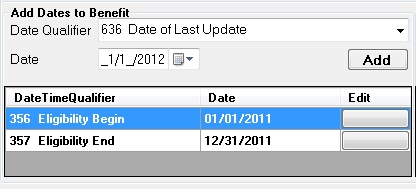
The Date screen
Here you can choose from a variety of different date types from the drop down menu and select the date as well.
Date types that you can choose from are:
193 Period Start
194 Period End
198 Completion
290 Coordination of Benefits
292 Benefit
295 Primary Care Provider
304 Latest Visit or Consultation
307 Eligibility
318 Added
348 Benefit Begin
349 Benefit End
356 Eligibility Begin
357 Eligibility End
435 Admission
472 Service
636 Date of Last Update
The above screen shows you a sample with three additional Identifiers and a description for one of them.
Choose a qualifier and an Id. The description is optional. When you click the save button, the additional identifier will be saved.
The last segment narrowing the benefit information is the 'MSG' segment. This segment an contain any text up to 256 characters long that can describe a benefit or have any other information that might be important and can only be expressed in free format.
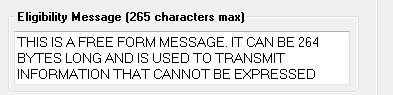
The free form Message
Once you are done with a benefit, you can click on 'Add Benefit' and the line is saved to the benefit grid.
If you want to go back and edit a benefit or add additional information, just double click a line in the defined benefit grid and the data is back in the fields and drop down boxes above, ready to be added. You will see that the 'Add Benefit' button reads now 'Save Benefit' This way you know that you are in edit mode. After you made your changes or added information, click on 'Save Benefit' to update the response.