You can either use the menu 'File' and 'Open'
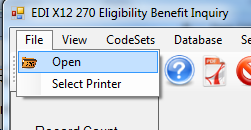
Figure1: Opening a file through the menu
or the taskbar icon the 'Open 270 Folder' icon to bring up the Windows File Chooser
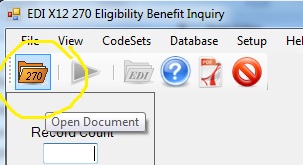
The 'File Open' task bar icon
Navigate to your 270 EDI file and select it.
Now you can click on the red arrow button or on the 'Process' button and you will see the listing of individual requests in the request grid.
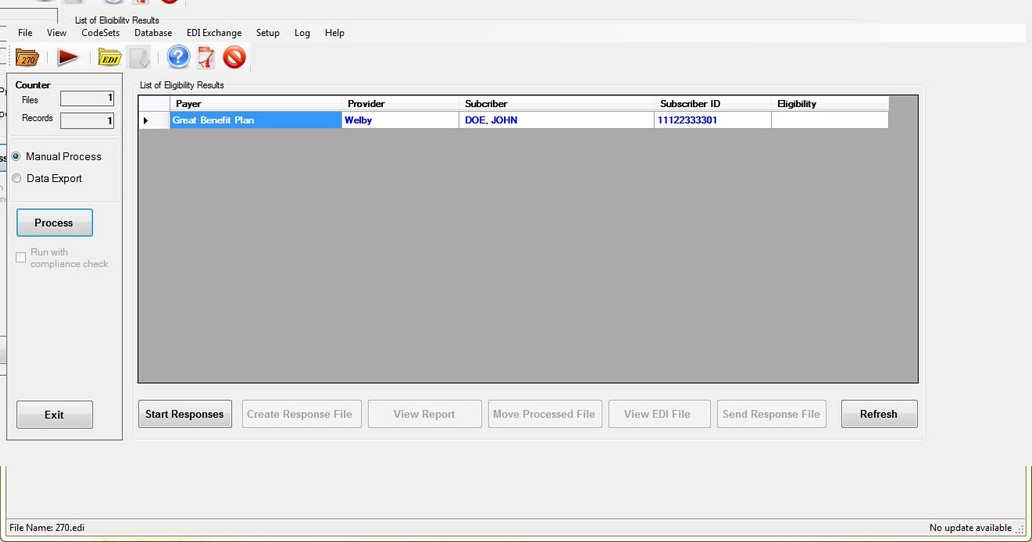
After parsing a 270 request file
We can see that this particular 270 file contained 3 different requests. The window lists the payer, the provider and the subscriber and ID. Please note that the last column with the eligibility information is empty.
We can either double-click on a row in the request grid or by clicking on the 'Start Responses' button. The 'Start Responses' button will start with request number one.
Once the eligibility information has been added, one can create the response file by clicking on the 'Create Response File' button. Once the file has been created the 'View EDI File' and the 'View Report' button will be enabled
The 'Move Processed File' button will move the file to the directory that has been specified in the setup screen.