In Response mode you typically open 278 Request files and load them into the application so that you can view and process them.
Selecting the EDI file
The first step is to open a 278 record file. Either do this with the -->File -->Open menu or by clicking on the File Open button in the tool bar.
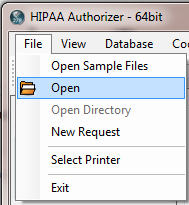
The Open File menu. The "Open File" button is visible to the left of the menu on the tool bar
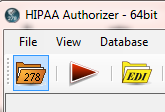
Opening a file with the toolbar
Once the file is opened, you can process it by clicking on the "Process" button at the bottom of the information bar or by clicking the "Run" button on the tool bar.
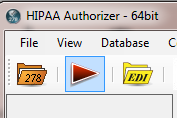
The "Run" button on the tool bar
The EDI file is now parsed and the individual request records displayed in a grid. From here we can work on each request.
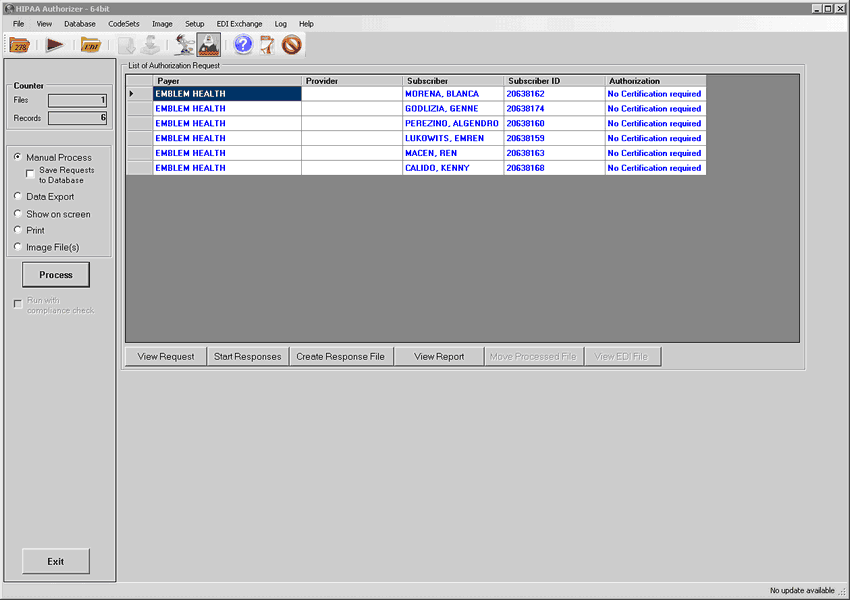
A file is loaded and the individual review requests listed in the grid.
Here we see the result of a request file loaded into the grid. From here we can view and process the individual requests. We have the choice to load the request data at the same time into the response.
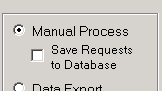
A check box to save requests to the database when loading a file for manual response