The subscriber screen consists of several parts. When we look at the complete screen we see a tabbed control on top with the subscriber and if different the patient information plus some diagnostic information.
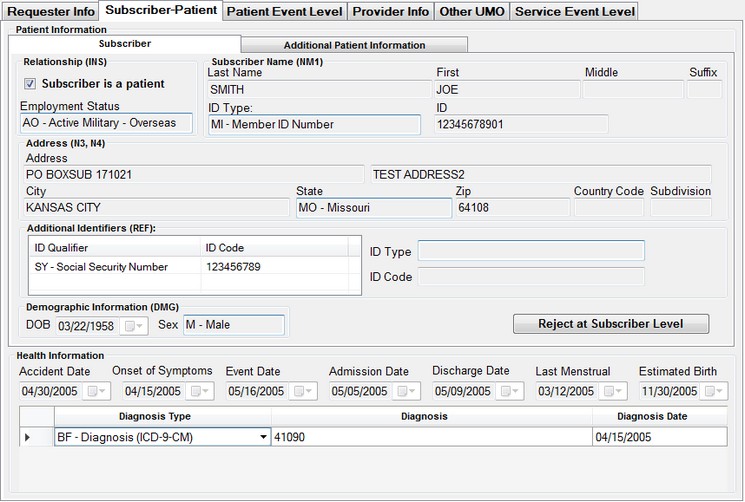
The subscriber screen
Let's look first at the subscriber part:
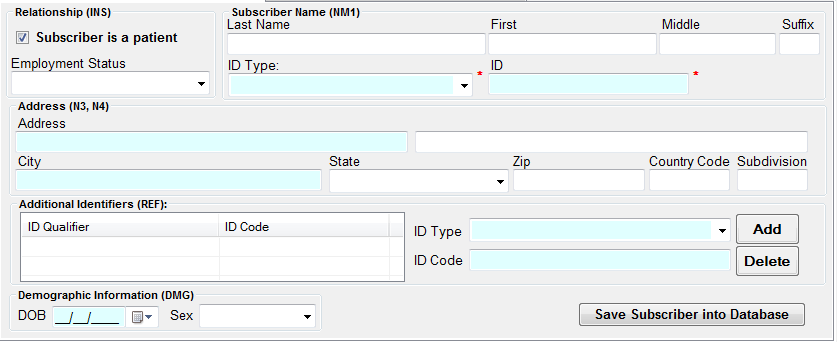
The part of the form dealing with the subscriber information
Most fields are self-explanatory. Fields such as Employment Status, Country Code and Subdivision are normally not required or used. The information can be saved into the database in the table 'Authsubscribers'. Once you start typing in the last name field, a drop down appears where you can select previously saved subscribers. In the top left corner is a check mark "Subscriber is Patient". When this is unchecked, the tab with the dependent information appears.
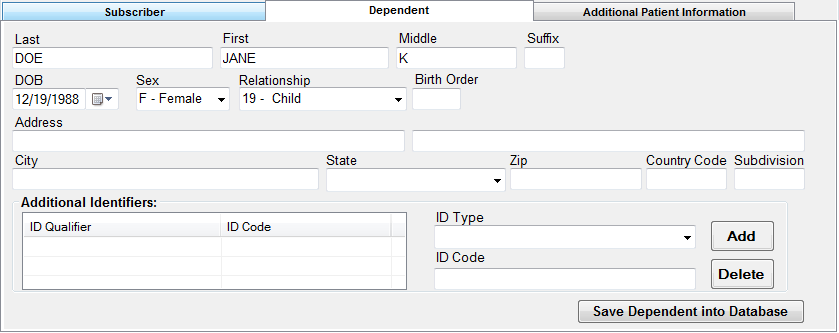
The dependent screen
Again, here the fields are self explanatory. Dependent data can be saved to the database for later retrieval just like the subscriber information.
The last tab is called "Additional Patient Information". Here we have space for a free-form text message and notices of additional paperwork and reports that are separate from this request such as X-rays or diagnostic reports.
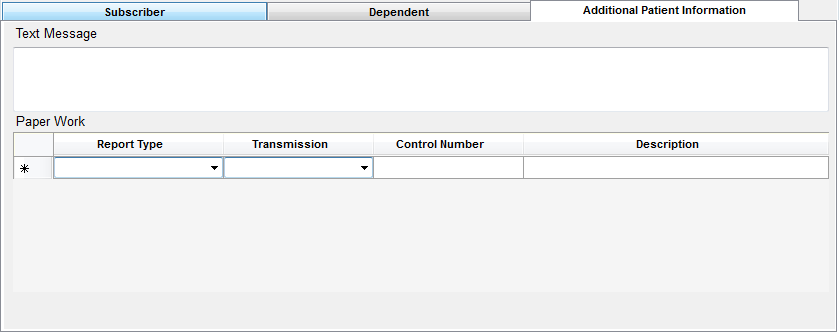
The Additional Patient Information tab
Lastly at the bottom of the screen are dates relevant to the request and a grid for diagnostic codes.

Health Information at the bottom of the Subscriber screen
The dates speak for themselves, the diagnosis codes need more explanation. At the time of this writing, January 2014, the US health system is transitioning from ICD-9 to ICD-10 codes. To clearly mark codes the first field in the diagnosis grid has a pull-down menu to select the diagnosis code type.
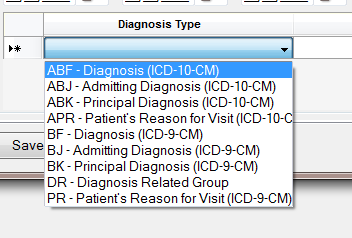
The different diagnosis code types to choose from