|
<< Click to Display Table of Contents >> Setup |
  
|
|
<< Click to Display Table of Contents >> Setup |
|
Before you can use your HIPAAsuite RealTime Server, you must first configure Database connection settings as well as the domain and ports it will be hosted in. Any changes made to the configuration will take effect after the HIPAAsuite RealTime Server is restarted.
| 1. | To configure HIPAAsuite RealTime Server, right click the HIPAAsuite RealTime Server notification icon. |

HIPAAsuite RealTime Server notification icon. The icon may be hidden.
2. Select "Configure"
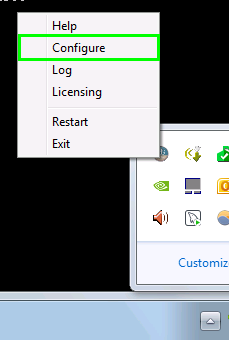
HIPAAsuite RealTime Server notification icon menu.
3. The following screen will appear. The configuration file is stored in C:\ProgramData\HIPAAsuite\HIPAA RealTimeServer and should not be modified while the server is in operation.
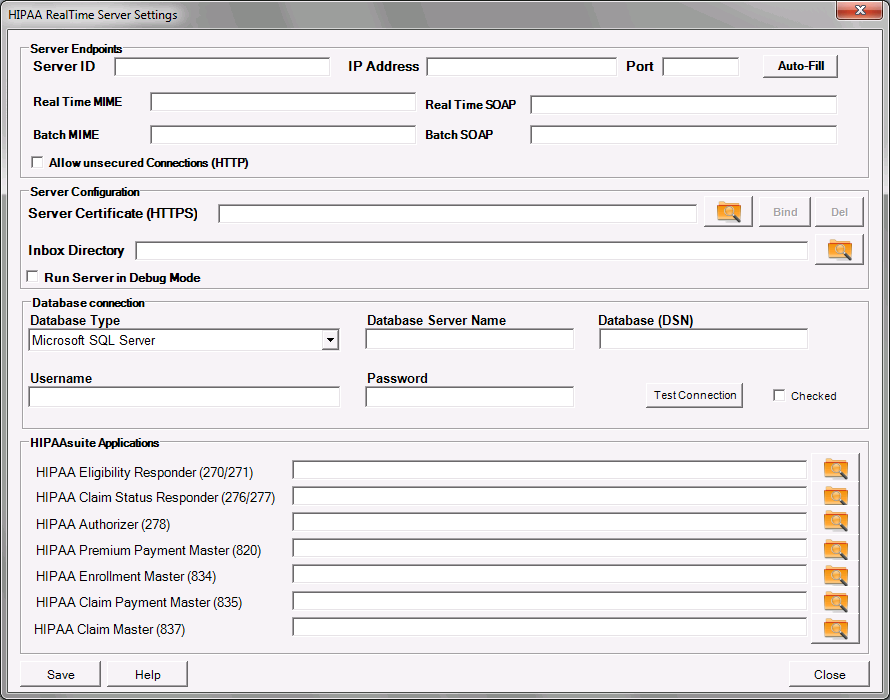
The HIPAAsuite RealTime Server setup window.
Here you will configure your Inbox directory, SSL certificate, and toggle Debug mode.
Inbox Directory:
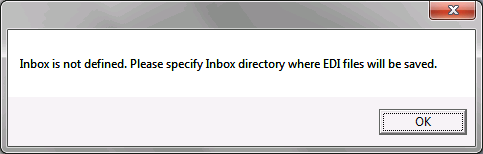
The HIPAAsuite inbox folder used to store all incoming EDI files are stored here. This folder is automatically generated by the HIPAAsuite responder applications when setting up the location of your EDI Exchange Root Directory path. Without an inbox directory an incoming EDI file cannot be written to disc. This field is mandatory and not filling it in will yield an error message.
Run Server in Debug Mode:
Checking this option will enable debug mode. In debug mode, the server displays a console through which incoming and outgoing transactions, their relevant metadata and useful notifications can be seen. For further information, see here.
Checking the Debug Mode option will present the option of displaying the entirety of the incoming and outgoing EDI payloads. The "Show Payload" option is off by default and if left unchecked, only the ISA segments will be presented, as these contain no identifying information on the subjects of the EDI transactions.

"Show Payload" option checkbox in Server Configuration settings.
SSL Certificate:
The Authentication Certificate you will be using to encrypt the transport layer. The SSL Certificate can be bound to or unbound from the port the secure service will be hosted on when running the HIPAAsuite RealTime Server as an Administrator. More here
The domain/address the HIPAAsuite RealTime Server will be hosted in; EDI clients will send and receive messages to and from this address.
Server ID:
The name you wish to give your HIPAAsuite RealTime Server. This name will be used to identify you in the SOAP or MIME envelope formats.
IP Address:
The publicly accessible IP address or URL your HIPAAsuite RealTime Server will be hosted in.
Port:
The SSL port your HIPAAsuite RealTime Server will be hosted in. This port will be used to host an SSL-secured endpoint for HIPAA RealTime Server. The setup must be run as an Administrator if the port is to be changed, as namespace reservations needed to use these ports without Administrative rights can only be created as an Administrator.
Auto-Fill:
This button will fill in the Realtime and Batch endpoints with suggested address extensions; an address extension is necessary in all fields.
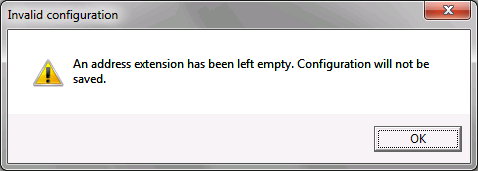
RealTime SOAP and Batch SOAP address extensions must be unique, as they use different envelope formats and need different endpoint addresses.
Allow Unsecured Connections:
If checked will present a textbox to fill in the port number for the unsecured endpoints. The unsecured endpoint will have the same address (exempting port number) and address extensions for services as the secured endpoint but will use HTTP instead of HTTPS. For more information see here.
The database connection details. Specify Database Management System, location, and user credentials.
Database Type:
Select from Microsoft SQL Server and Microsoft SQL Server Integrated Security.
Database Server Name:
Name/address of server the database is hosted in.
Database (Data Source Name):
Name of the Database.
Username:
Username for Database connection. Only necessary is not using SQL Server Integrated Security.
Password:
Password for Database connection. Only necessary if not using SQL Server Integrated Security.
Test Connection:
The Test Connection button will test your database connection details using the connection details specified. If your connection details are correct, the checkmark to the right of the "Test Connection" button will be filled. If there are any problems connecting to the database using the connection details you provided, a popup window will be displayed specifying the reason.
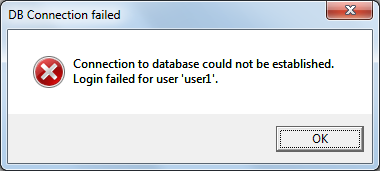
Connection failure window. An incorrect password was supplied for the username.
Saving the configuration without having tested the database connection details will still save the configuration, but you will be warned beforehand.
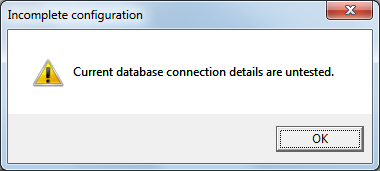
Database connection was not tested before saving configuration.
Executable paths for all the HIPAAsuite applications. The appropriate HIPAAsuite application will be called whenever an EDI file is received by HIPAAsuite RealTime Server.
After saving your preferences, it is always necessary to restart your HIPAAsuite RealTime Server for the changes to take effect. The RealTime Server will restart itself for you.
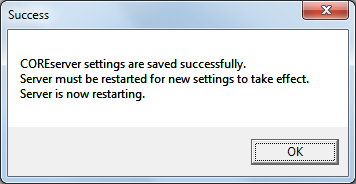
Server will restart after a successful configuration.