|
<< Click to Display Table of Contents >> Server Certificates |
  
|
|
<< Click to Display Table of Contents >> Server Certificates |
|
As we mentioned earlier, the HIPAAsuite RealTime Server uses Secured Socket Layers for security reasons. This is also known as HTTP over SSL or in short HTTPS. This secure transport layer is based on an encryption certificate. These certificates have several capabilities:
| • | Encrypt your application layer data. (In your case, the application layer protocol is HTTP.) |
| • | Authenticate the server to the client. |
| • | Authenticate the client to the server. |
When you connect to a site that is secured by a certificate, a behind the scenes process exchanges the public part of the server certificate to the client and the client browser has also a public key which it exchanges with the Server. Once the public keys are exchanged, all the traffic between client and server, back and forth, are securely encrypted.
Certificates are issued by Certificate Authorities. There are a handful of recognized organizations in the world that generate and sell such server certificates. These certificates will also identify and verify the domain for which they are issued and guaranteed by the authority. This makes sure that nobody could for example fake a certificate for the New York Times because no Certificate Authority will do that for a rogue player. The most known certificate authorities are Verisign, GeoTrust, Thawte, DigiCert and Comodo. They sell several forms of server certificates. The purchase of the Certificate is left to the system administrator. Certificate vary in price from 50 to several thousand dollars.
As mentioned, certificates are valid for a domain. You cannot deploy the HIPAAsuite RealTime Server without having an internet domain like www.MyHealthPlan.com and deploy the server using a fixed IP address. In addition you need a valid server certificate.
To bind a certificate to a port using RealTime Server, the application must be run as an Administrator. You will need the certificate's full file path. If you used relative addressing to specify the certificate path when creating a self-signed certificate, assuming the default installation location for Windows SDK, your certificate path will be something like C:\Program Files (x86)\Microsoft SDKs\Windows\v7.0A\Bin\<certificatepath.cer>. Write the filepath of the certificate (including filename) into the textbox and click the "Bind" button to the right of the textbox.

Server Configuration group
This will bind the specified certificate to the port specified in Server Endpoints -> Port in the same configuration window and a message will be shown:
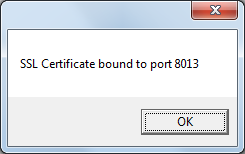
Successful binding of selected SSL Certificate to secure port
If a certificate has already been bound to the secure port, a message will be shown:
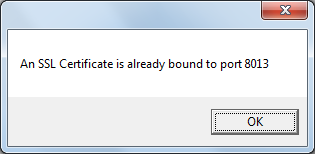
The port already has a certificate bound to it.
.pfx
A certificate export file generated from the key store can also be used. These files are generally password-protected, so you will be prompted for one upon clicking the "Bind" button.
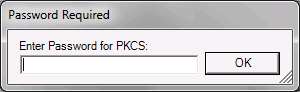
Password prompt for SSL certificate
If the password is correct, the certificate represented in the .pfx file will be bound to your secure https port.
To remove a certificate bound to your Secure SSL port, RealTime Server must be run as an Administrator. This will remove any SSL Certificate bound to the port specified in Server Endpoints. Click the "Del" button.

Button to delete a certificate bound to a port
This operation will free up the port specified in Server Endpoints. When performed correctly, the following message will appear:
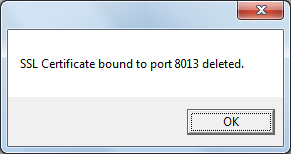
Success in unbinding an SSL Certificate from a port
Trying to delete an SSL certificate from a port that has none will yield this message:
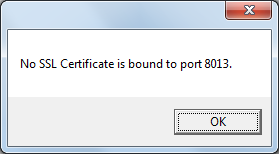
No SSL Certificate for the port