|
<< Click to Display Table of Contents >> Processing an Implementation Acknowledgment |
  
|
|
<< Click to Display Table of Contents >> Processing an Implementation Acknowledgment |
|
Follow the instructions below to open a single EDI file and display its details on screen in easy-to-read document format.
1. Go to File  Open in the main menu.
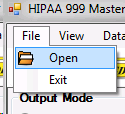
The "Open" menu option.
Alternatively, click on the "Open Document" icon shortcut located on the program toolbar.
2. Browse through the folders and select an EDI file. Click "Open."
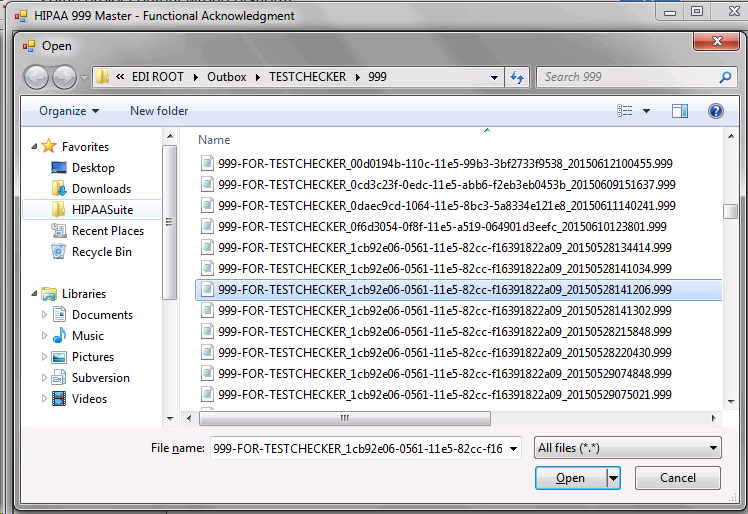
The file selection window.
3. Make sure the program tool bar is displayed in the left area. To display the left program bar with options, select View Info Bar.
4. Select one of the following modes in the "Output Mode" box. The Output mode defines the destination where the result file will be sent to. In our example, we select the "Screen" mode.
5. The file is now open. Click the "Run" button to process the file.
6. After clicking the "Run" button, the file will be parsed and the information displayed. As in our example the output mode is "Screen," the claim is displayed in a separate window.
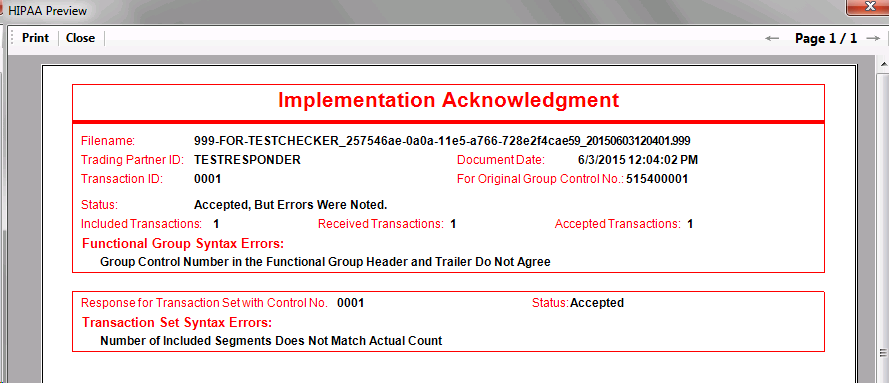
The display of a 999 EDI acknowledgment
If you choose an output mode other than Screen, you will see the hourglass mouse pointer until the parsing has been completed.