|
<< Click to Display Table of Contents >> Processing an Entire Directory |
  
|
|
<< Click to Display Table of Contents >> Processing an Entire Directory |
|
The "Open Directory" function works only when the output mode is not "Screen" but "Data Export" or "Image File".
Follow the instructions below to open a batch of EDI files located in one folder.
| 1. | Make sure the "Printer" or "Image File" mode is selected in the "Output Mode" box. The Output mode defines the destination where the result file will be sent to. |
Note: You cannot display a batch of EDI files on screen in a preview window, it is possible only for one file. See Opening 820 EDI Files.
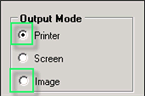
The "Output Mode" options
Note: If you select the "Image File" format for the first time, you need to define the image options. See Doing Image Setup.
| 2. | Go to File  Open Directory in the main menu. Open Directory in the main menu.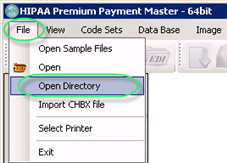 The "Open Directory" menu |
| 3. | Browse for the folder containing EDI files. Click on that folder and then click "OK." |
Note: Only claim files in "ANSI 820" format can be opened via the Claim Premium Payment Master. The program will display an error message if you select a file in a different format.
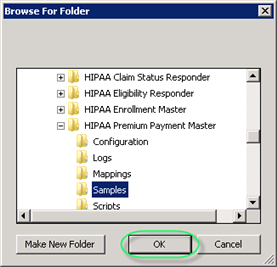
The "Browse for Folder" popup
| 4. | Click on the "Run" button to send all files from the folder to the destination. Note: The pre-defined settings will be applied. To print the files to image, configure the settings. See also: Configuring Program Options, Doing Image Setup. |
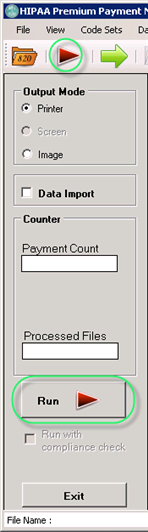
The "Run" buttons
| 5. | The "Counter" pane displays information online on the processed documents. 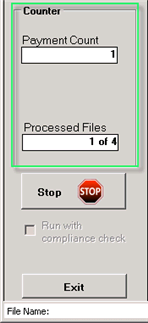 The "Counter" pane |
| 6. | The displayed "Processing Results" popup will report about operation results. 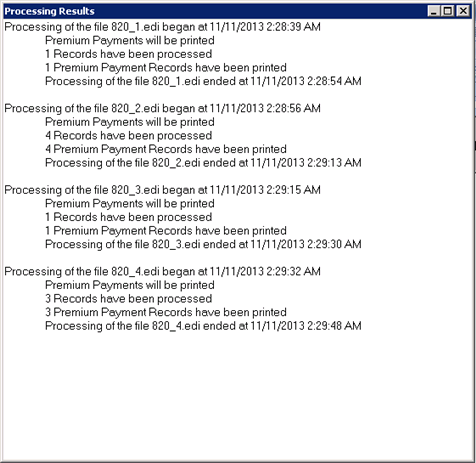 The "Processing Results" window |