The HIPAA Authorizer relies on Open Database connectivity (ODBC) or in the case of Microsoft SQL server on OleDB to connect to a database. This means that any database that adheres to the standards of ODBC are suitable to interact with the HIPAA Authorizer. ODBC connections have to be set up in Windows first, before you can use this feature. Typically ODBC connection are established in the Windows Control Panel, with newer versions having the ODBC Data Source Setup under the 'Administrative Tools'
OleDB connections use a database specific data access object or dll. The Authorizer comes by default with MS SQL Server's data access object. Contact us for a modification if you have a different OleDB provider.
Click on the Menu item Database --> Connection and Data Fields
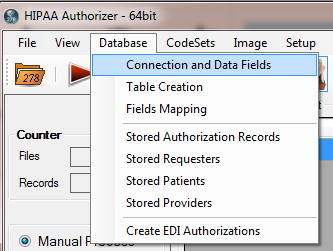
The database menu
and the following screen will show
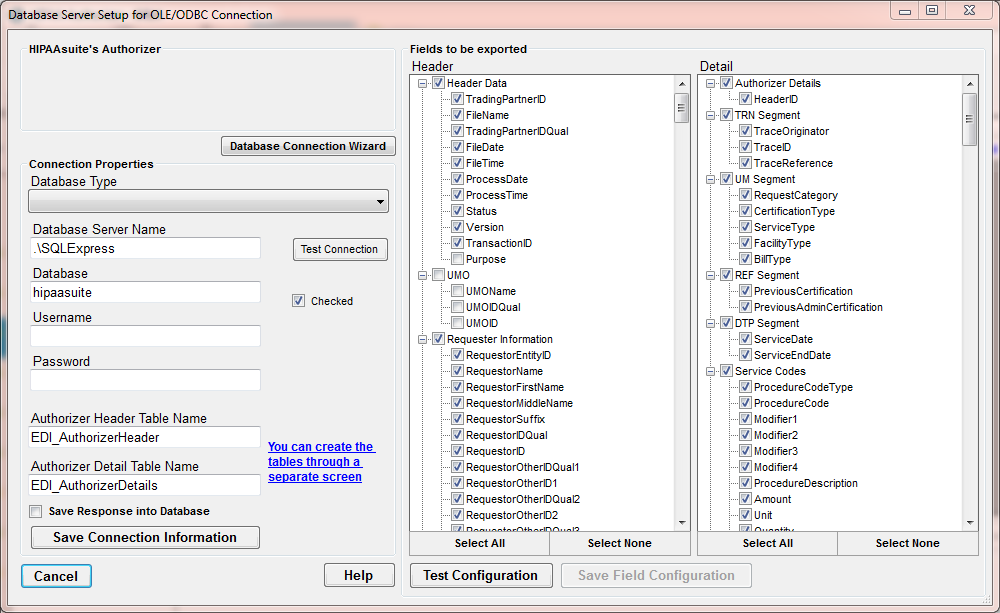
The connection and field configuration screen.
The right side of the form defines the connection while the left side defines the fields to be exported.
Here the Connection setup
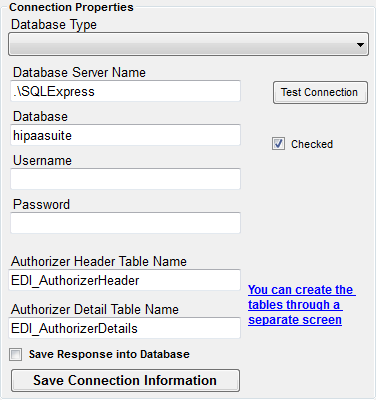
Defining the connection parameters
| • | Database Type --- Microsoft SQL Server, either with its own authentication or Windows authentication, ODBC, ODBC for Oracle or Oracle Direct Connect |
| • | Database Server Name or DSN --- In case of SQL server this is the IP adress or the name of the database server, for ODBC this is the Data Source Name (DSN) that is defined through the ODBC setup in the Control Panel of Windows |
| • | Database --- This is the database under the above connection |
| • | Username --- A defined user that has priviliges to the database. Not needed for Microsoft SQL server integrated security |
| • | Password ---. Not needed for Microsoft SQL server integrated security |
| • | Authorizer Header Table Name --- The name that you give to your Claim header table. A default name is suggested but can be overwritten |
| • | Authorizer Detail Table Name --- The name of the table that contains the line information. A default name is suggested but can be overwritten |
| • | Save Response into database -- this check mark will enable additional fields in the database that are used to store the response specific data elements. |
After filling in all the information, please test the connection by first saving and then clicking on the "Test Connection" button. You cannot export claims before this connection tests successfully.