|
<< Click to Display Table of Contents >> Printing Payment Records |
  
|
|
<< Click to Display Table of Contents >> Printing Payment Records |
|
If you want to print to a printer other than the computer's defined default printer, select the desired printer. See Selecting a Printer.
Note: The HIPAA products of the latest versions do not need anymore third party software for the creation of image files. Older versions needed the Peernet Tiff Image Printer or PDF Image Printer driver installed.
Follow the instructions below to print the payment records.
| 1. | Open an EDI file or directory containing the EDI files in the HIPAA Premium Payment Master. Read more in Processing an EDI File, Processing an Entire Directory.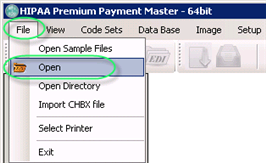 The "Open Document" button 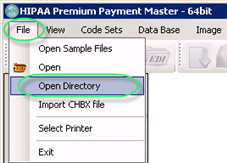 The "Open Directory" menu |
| 2. | Select the "Printer" option in the "Output Mode" block.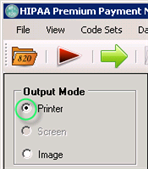 The "Printer" mode |
| 3. | Click on the "Run" button.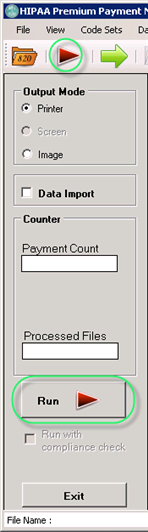 The "Run" buttons |
| 4. | The file(s) will be sent to the printer; the "Processing Results" window displays the report. 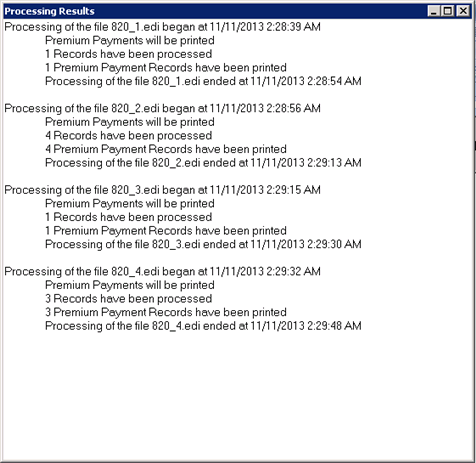 The "Processing Results" window |
The exact same image that you see on the screen display can be sent to a printer (see 'Choosing the Output Mode') and printed.
Individual records can also be printed out of the display form. In the upper left corner is a 'Print' button
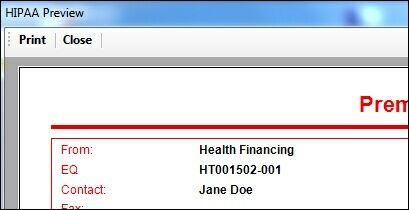
Printing an individual page